
 ⚡ At a Glance: Roku Media Player (RMP) Specs ⚡ At a Glance: Roku Media Player (RMP) Specs | |
|---|---|
| Target Platform & OS | Roku Ultra, Roku Streaming Stick 4K, Roku Express, TCL/Hisense Roku TV |
| Protocol & Port | DLNA 1.5 MediaServer (HTTP Byte-Range), Port 8080 |
| Connection Type | Local Wi-Fi (5 GHz recommended) or Personal Hotspot |
| Transcoding | None (Direct Play original H.264/HEVC bitstream; Roku hardware decoding) |
| Typical Setup Time | ~2 minutes (Install Roku Media Player > Select Zee Cast) |
With over 80 million active devices worldwide, Roku streaming players and Roku Smart TVs (from TCL, Hisense, and Sharp) are beloved for their simplicity and lightning-fast interface. But when it comes to streaming personal media from your smartphone, many users run into roadblocks: VLC is not available on Roku, Infuse is Apple-only, and standard screen mirroring often stutters or locks your phone screen.
The official, native way to play your phone's camera roll videos, high-resolution photos, and audio files on Roku is using Roku Media Player (RMP) paired with a lightweight DLNA server like Zee Cast.
Key takeaways
- Roku OS does not support third-party media engines like VLC or Infuse; Roku Media Player (RMP) is the official native DLNA client.
- 4K HEVC/H.265 and H.264 files Direct Play with zero quality loss over local Wi-Fi without taxing your phone's CPU.
- Subtitles require embedded UTF-8 text (.srt, .vtt) inside MKV or MP4 containers; bitmap PGS subtitles are not supported by Roku hardware.
- Works 100% offline via Personal Hotspot with zero cellular data consumption.
Why Isn't VLC Media Player on Roku?
One of the most frequently searched questions is: "How do I install VLC on my Roku?"
The short answer: You cannot install VLC on Roku. Unlike Android TV, Fire TV, or Apple TV, which run general-purpose app runtimes, Roku uses a custom, sandboxed Linux distribution called Roku OS. Apps on Roku are written in BrightScript and rendered using the SceneGraph XML framework. VideoLAN's LibVLC engine is written in C/C++ and compiled for native POSIX architectures, which Roku's security architecture does not permit.
Fortunately, you do not need VLC. Roku's official Roku Media Player channel contains a robust, hardware-accelerated UPnP/DLNA client that plays the exact same video and audio formats when paired with Zee Cast on your phone.
Roku Media Player Supported Formats & Codecs
Roku Media Player uses the dedicated multimedia hardware decoder inside your Roku SoC (Broadcom, Realtek, or MediaTek). Here is the full codec support matrix:
| Media Type | Supported Containers | Supported Codecs | Notes & Limitations |
|---|---|---|---|
| 4K Video | MKV, MP4, MOV | HEVC / H.265 (Main & Main 10), VP9 | Requires 4K-capable Roku model (Roku Ultra, Streaming Stick 4K) |
| HD Video | MKV, MP4, MOV | H.264 / AVC (High Profile Level 4.2) | Supported across all Roku hardware including Roku Express |
| Audio | MP4, MKV, M4A, FLAC, WAV | AAC, AC-3 (Dolby Digital), E-AC-3, FLAC, PCM | Supports 24-bit lossless FLAC and multi-channel surround passthrough |
| Photos | JPEG, PNG | JPEG, PNG baseline | Zee Cast automatically converts iPhone HEIC photos to crisp JPEG streams |
| Unsupported | AVI, WMV, VOB, ISO | DivX, Xvid, MPEG-2, VC-1 | Roku hardware lacks legacy MPEG-4 Part 2 ASP hardware decoders |
How to Enable Subtitles in Roku Media Player
A common frustration when streaming to Roku is: "Why don't my subtitles show up?" Roku Media Player handles subtitles strictly through hardware rendering, which imposes specific container requirements:
- Embedded Text Subtitles: Subtitles must be packaged as standard text tracks (UTF-8 SRT, WebVTT, or TTML) inside an MKV or MP4 file.
- Activate Closed Captioning: During video playback, press the Star (*) button on your Roku remote. Navigate to Closed captioning and change the setting to "On always" or "On replay".
- Select Track: If your video has multiple languages, select Captioning track from the Star (*) menu to switch between English, Spanish, or commentary tracks.
- Avoid Bitmap Subtitles: PGS (Blu-ray bitmap) and VOBSUB (DVD bitmap) subtitles will not display on Roku unless burned into the video. Text-based SRT subtitles render instantly with custom Roku font sizing and contrast backgrounds.
Step-by-Step: Stream from Phone to Roku via Zee Cast
- 1
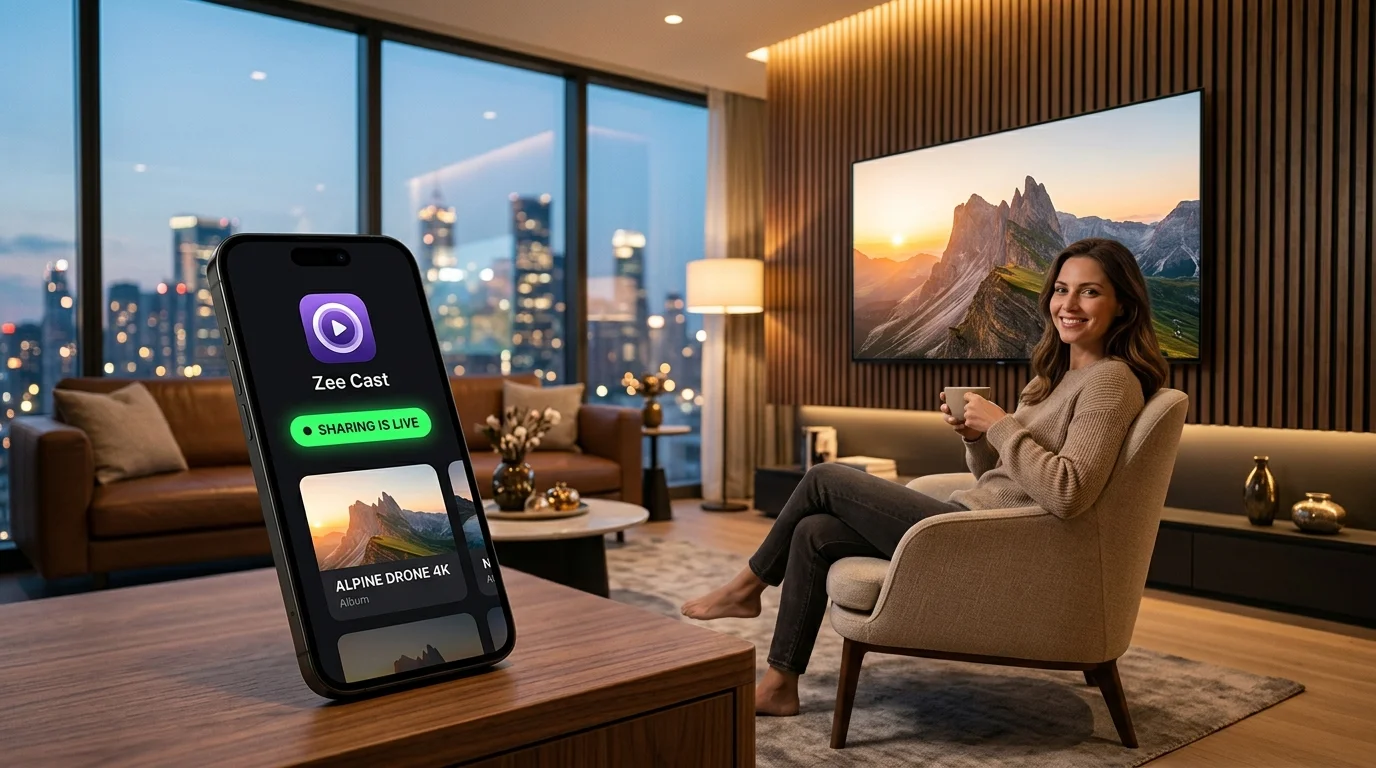
Launch Zee Cast
Open Zee Cast on your iPhone or Android phone. Group your photos, 4K home videos, or downloaded movies into a collection.
- 2
Tap "Turn on sharing"
Zee Cast activates its local UPnP/DLNA media server. It broadcasts SSDP alive packets across your Wi-Fi network.
Roku Media Player · Menu NavigationRoku Home → Roku Media Player → Select All or Video → Select Zee Cast
- 3
Browse and Play on Roku
In Roku Media Player, select Zee Cast. Browse your collections and click Play on any file. Playback starts in under 1 second using bit-perfect Direct Play.
Frequently Asked Questions
Can you install VLC Media Player on Roku?
No. VideoLAN does not develop an app for Roku because Roku OS does not run Android or Linux-based binaries. Roku OS is a proprietary platform built on BrightScript and SceneGraph. Instead of VLC, Roku provides 'Roku Media Player' (RMP), which acts as a native UPnP/DLNA client that connects seamlessly to Zee Cast on your phone.
Is Infuse available on Roku?
No. Firecore Infuse is strictly exclusive to Apple platforms (Apple TV, Mac, iOS). If you have a Roku Streaming Stick, Roku Express, or Roku TV (TCL, Hisense, Sharp), use the preinstalled Roku Media Player app: it connects directly to Zee Cast over DLNA with identical uncompressed 4K video quality.
Which video and audio formats does Roku Media Player support?
Roku Media Player natively supports MP4, MOV, and MKV containers. Supported video codecs include H.264/AVC, H.265/HEVC (on 4K-capable Roku models), and VP9. Supported audio codecs include AAC, AC-3 (Dolby Digital), E-AC-3 (Dolby Digital Plus), MP3, FLAC, and PCM WAV. Unsupported formats include AVI (DivX/Xvid) and older MPEG-2 video.
How do I get subtitles to display in Roku Media Player over DLNA?
Roku Media Player supports embedded UTF-8 text subtitles (.srt, .vtt, .ttml) inside MP4 or MKV containers. While playing a video, press the Star (*) button on your Roku remote, select 'Closed captioning', and set it to 'On'. Note that bitmap subtitles (such as DVD VOBSUB or Blu-ray PGS) are not supported by Roku hardware.
Why does Roku Media Player say 'No media servers found'?
This is usually caused by router AP Isolation or multicast filtering. Make sure both your phone and Roku device are on the same Wi-Fi network (not a guest network), and verify that 'Client Isolation' is disabled in your router settings. Toggle sharing off and on in Zee Cast to send a fresh SSDP multicast broadcast across your network.
Can I stream to Roku without Wi-Fi or internet using a mobile hotspot?
Yes! Turn on Personal Hotspot on your phone, connect your Roku to your phone's hotspot Wi-Fi, launch Zee Cast, and open Roku Media Player. Your media streams locally over the wireless link with zero internet data usage.


