
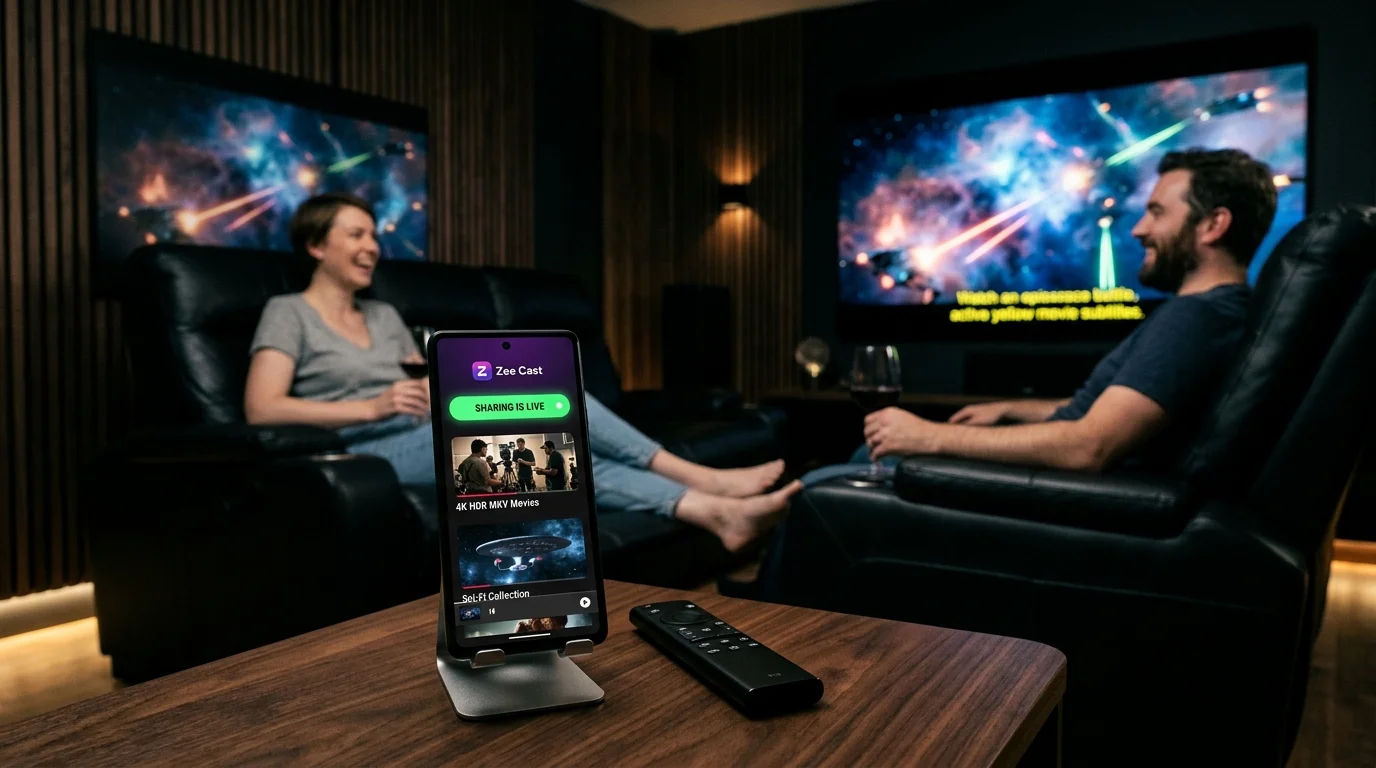
⚡ At a Glance: Quick Specs | |
|---|---|
| Target Platform & OS | |
| Protocol & Port | DLNA 1.5 / UPnP MediaServer, Port 8080 (HTTP Byte-Range) |
| Connection Type | Local Wi-Fi (5 GHz recommended) or Hotspot (0 MB Internet Data) |
| Transcoding | None (Direct Play original bitstream to native TV hardware) |
| Typical Setup Time | ~2 minutes (Instant local discovery) |
Key takeaways
- Smart TVs love text: SubRip (SRT) subtitles take virtually zero bandwidth and are rendered natively by the TV operating system.
- Smart TVs choke on image bitmaps: PGS subtitles are sequences of picture graphics that TV video decoders cannot easily overlay over DLNA.
- Traditional home servers force heavy CPU/GPU burn-in transcoding when encountering PGS, causing playback stutter.
- Converting your PGS tracks to SRT once ensures lifetime Direct Play compatibility across every smart TV and mobile device.
Subtitle Format Compatibility Matrix
The architecture of your subtitle stream determines whether your Smart TV can display it natively over local DLNA:
| Subtitle Format | Type | Smart TV Native DLNA Support | Transcoding Required? | Common Source |
|---|---|---|---|---|
| SRT (SubRip) | Plain Text (UTF-8) | 100% Universal Support | No (Pure Direct Play) | Streaming, Web, OpenSubtitles |
| WebVTT (.vtt) | Plain Text (HTML5 style) | Wide Support (Modern TVs) | No (Pure Direct Play) | HLS streams, browser video |
| PGS (.sup) | Bitmap Graphic Overlay | Unsupported on most TVs | Yes (Triggers burn-in transcode) | Physical 4K UHD & Blu-ray discs |
| VobSub (.sub/.idx) | Bitmap Graphic Overlay | Limited / Inconsistent | Yes (On modern smart TVs) | DVD Video Discs |
| SSA / ASS | Styled Text & Vector Script | Stripped to plain text | Sometimes (If karaoke/styling) | Anime fansubs & stylized releases |
How to Convert PGS to SRT in 60 Seconds
If you have a collection of MKV movies ripped from Blu-ray discs that only contain PGS subtitles:
- 1
Download Subtitle Edit
Download the free open-source tool Subtitle Edit (Windows / Linux / macOS).
- 2
Open your MKV file
Open your MKV file in Subtitle Edit. The software automatically detects the embedded PGS subtitle track.
- 3
Run OCR conversion
Click Tools → OCR (Optical Character Recognition). Subtitle Edit scans bitmap graphics using Tesseract OCR, converting images into clean UTF-8 text in seconds.
- 4
Save as .srt
Click Save As and save the subtitle as a
.srtfile with the exact same name as your video.
When streamed via Zee Cast, your smart TV will display crisp, legible subtitles with zero buffering.
Frequently Asked Questions
Why don't subtitles appear on my Smart TV when streaming via DLNA?
Most Smart TV native media players (including Samsung Tizen and LG webOS) only support text-based subtitle tracks (such as SubRip .SRT or WebVTT). If your movie uses bitmap-based image subtitles—specifically PGS (Presentation Graphic Stream ripped from Blu-rays) or VobSub (from DVDs)—the TV's video processor cannot rasterize the images and silently ignores the subtitle track.
What is the difference between PGS and SRT subtitles?
SRT (SubRip) is purely plaintext formatted with timestamp ranges. The TV reads the text and renders it using its own system fonts. PGS (Presentation Graphic Stream) is not text; it consists of high-resolution bitmap graphics (essentially transparent PNG images) designed for Blu-ray players. Rendering 4K bitmap images over video requires significant GPU composition power that TV firmware does not expose over DLNA.
How do I convert PGS subtitles to SRT?
You can convert PGS subtitles to clean SRT text in under 60 seconds using free desktop tools like Subtitle Edit or MKVToolNix. Subtitle Edit uses fast Optical Character Recognition (OCR with Tesseract engine) to extract text characters from PGS image graphics.
Does DLNA support external .srt subtitle files?
Yes, provided the media server supports the UPnP 'res@protocolInfo' subtitle extension or the TV supports sidecar subtitle loading. However, the most universally reliable method across 100% of smart TVs is soft-muxing the text-based SRT track directly inside the MKV or MP4 container.
Why do some media servers transcode and overheat when subtitles are turned on?
When a media server (like Plex or Jellyfin) detects that your smart TV cannot display a PGS subtitle track, it triggers 'burn-in transcoding'. The server re-encodes the entire 4K video stream frame-by-frame on the CPU/GPU to burn the subtitle graphics directly into the pixels. Zee Cast avoids this by encouraging native SRT Direct Play, preserving original quality and phone battery.


