

 ⚡ At a Glance: Panasonic, Sharp & Toshiba Direct Play Specs ⚡ At a Glance: Panasonic, Sharp & Toshiba Direct Play Specs | |
|---|---|
| Target Platform & OS | Panasonic Viera / My Home Screen, Sharp Aquos & Toshiba Smart TVs |
| Protocol & Port | DLNA 1.5 / UPnP MediaServer, Port 8080 (HTTP Byte-Range) |
| Connection Type | Local Wi-Fi (5 GHz) or Ethernet / Hotspot (0 MB Internet Data) |
| Transcoding | None (Direct Play native 4K/1080p MP4, MKV, HEVC, JPEG bitstreams) |
| Typical Setup Time | ~60 seconds (Built-in Media Player, no app store download needed) |
Breathe New Life into Sharp, Toshiba & Panasonic Smart TVs
Whether you have a premium Panasonic OLED in your home theater, a reliable Sharp Aquos in the bedroom, or a Toshiba Smart TV in the guest room, you've likely encountered a familiar frustration: modern casting features are missing.
Most of these televisions:
- Lack Apple AirPlay 2: Panasonic's My Home Screen OS and older Sharp/Toshiba models never licensed Apple AirPlay 2.
- Lack Google Cast: Unless the TV runs Android TV, casting from Google Pixel or modern Android phones is unsupported.
- Have Deprecated App Stores: Dedicated smart TV app stores on these sets rarely receive updates, making third-party screen receiver apps non-existent or broken.
The Universal Solution: Firmware-Level DLNA Direct Play
Fortunately, all three manufacturers adhered strictly to the international DLNA 1.5 standard. Embedded deep within the firmware of Panasonic, Sharp, and Toshiba TVs is a dedicated, hardware-accelerated Media Player.
By launching Zee Cast on your smartphone, your phone acts as an instant local UPnP media server. Your TV detects it immediately, streaming photos and 4K video clips directly to the television's internal video processor with zero mirroring lag.
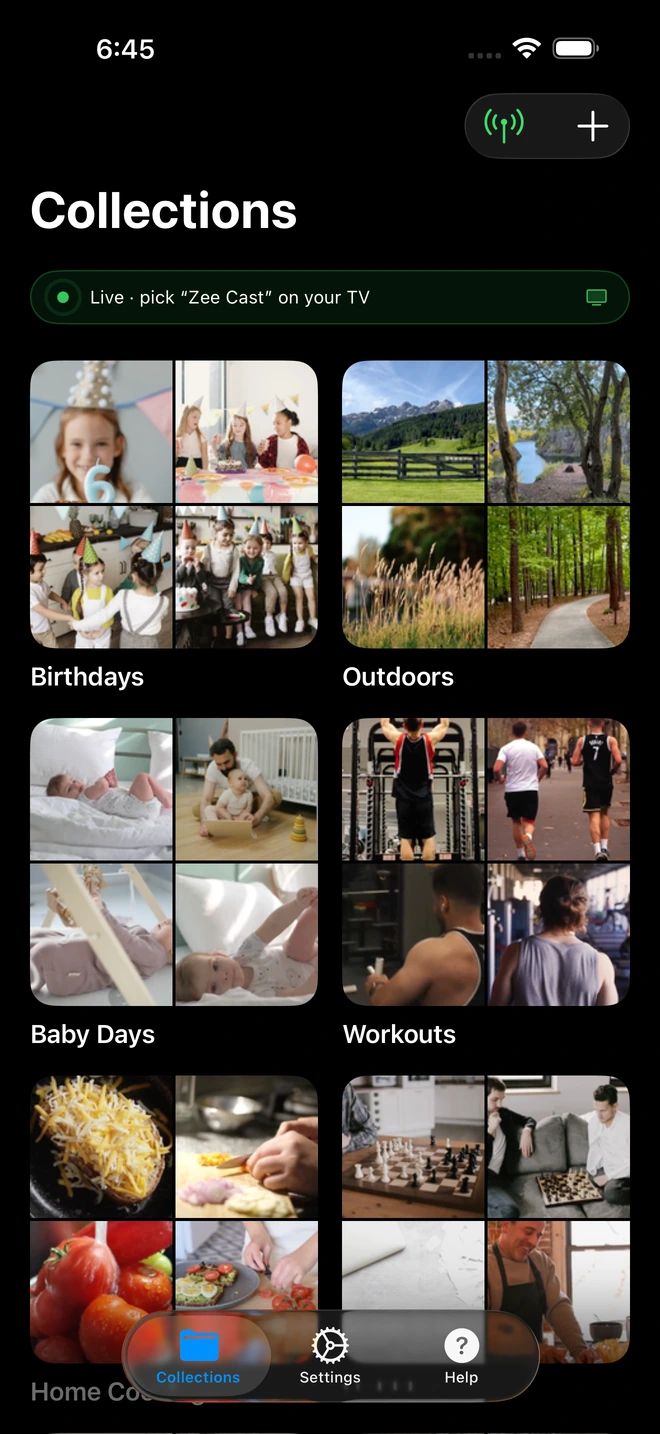
- 1Server is live - instantly discoverable on TV.
4-Step Setup: Streaming to Panasonic, Sharp & Toshiba
Get your phone photos and 4K videos playing on your television in under a minute:
- 1
Connect to the Same Home Network
Ensure your smartphone and your TV are connected to the same Wi-Fi router (preferably the 5 GHz band) or wired Ethernet switch.
- 2
Launch Zee Cast & Turn On Sharing
Open Zee Cast on your phone. Select the photos or 4K home videos you want to watch, and tap Turn on sharing to start the local media server.
- 3
Open Media Player on Your TV Remote
Grab your TV remote and navigate to your TV's native media browser:
Panasonic Viera / My Home Screen · Menu NavigationPress Home or Apps → Open Media Player → Select Home Network → Zee Cast
Sharp Aquos Smart TV · Menu NavigationPress Menu / Home → Navigate to Media / Home Network → Select Zee Cast
Toshiba Smart TV · Menu NavigationPress Home / Input → Open Media Player → Choose Zee Cast under Local Servers
- 4
Browse and Play with Native Silicon Decoding
Use your TV remote arrows to navigate photo albums or video folders. Photos render in full native resolution, and videos play back with smooth hardware acceleration while your phone stays unlocked and free for other tasks.
Technical Advantages: Why DLNA Never Becomes Obsolete
Unlike proprietary casting protocols and smart TV app stores that get abandoned when newer television models launch, DLNA Direct Play offers permanent advantages:
| Evaluation Criteria | Proprietary TV Apps | Screen Mirroring | Zee Cast (Native DLNA) |
|---|---|---|---|
| Long-Term Longevity | Deprecated when OS updates stop | OS version dependent | Permanent: Embedded firmware standard |
| Playback Performance | Often sluggish on older SoCs | Laggy 30fps screen capture | Hardware-accelerated native decoding |
| App Store Dependency | Requires active store account | Requires receiver apps | Zero: Built into the TV firmware |
| Full-Screen Aspect Ratio | Varies | Black bars on all sides | 16:9 Full Screen Edge-to-Edge |
| Phone Freedom | Varies | Phone completely locked | 100% Free: Lock screen, call, chat |
Hardware Video Processing on Panasonic HCX & Sharp Silicon
Even on models produced five or eight years ago, Panasonic, Sharp, and Toshiba engineered capable video processing pipelines (such as Panasonic's Hollywood Cinema eXperience HCX chip).
When Zee Cast streams over your local network, it delivers the unaltered source file. The television's onboard hardware handles scaling, color rendering, and de-interlacing directly, giving you picture quality that easily rivals expensive dedicated streaming boxes.
💡 Pro Tip: Remote Control Fast-Forward & Slideshows
Once your photo album opens on your Panasonic, Sharp, or Toshiba TV, press the Play or Options button on your remote control to start an automated slideshow. For 4K home videos, the standard Skip, Seek, and Pause buttons on your remote control communicate directly with Zee Cast's HTTP byte-range server.
Frequently Asked Questions
Do Panasonic, Sharp, and Toshiba Smart TVs have built-in DLNA support?
Yes. Every Panasonic Viera / My Home Screen TV, Sharp Aquos display, and Toshiba Smart TV features an embedded Digital Media Player (DMP) client built directly into the firmware. Because DLNA 1.5 is a universal consumer electronics industry standard, these televisions automatically discover Zee Cast via SSDP multicast without requiring any third-party app installations.
Why is DLNA the best streaming solution for secondary or older Smart TVs?
Smart TV platforms on older or secondary televisions (such as Panasonic My Home Screen, Sharp Aquos Net+, and proprietary Toshiba portals) rarely receive new app updates, and their app stores are often deprecated. Furthermore, these TVs rarely include Apple AirPlay 2 or Google Cast. DLNA is an eternal, firmware-level protocol: it requires no cloud logins, never expires, and delivers bit-for-bit hardware-accelerated playback indefinitely.
Does Zee Cast work with Panasonic OLED TVs running My Home Screen?
Yes! High-end Panasonic OLEDs (such as the MZ2000, LZ2000, JZ2000, and HZ series) feature Panasonic's HCX Pro AI Processor. Streaming via Zee Cast feeds raw 4K 60fps HEVC and 10-bit HDR video directly into Panasonic's master-grade video processing engine, preserving Hollywood-tuned color grading and contrast.
How do I access Zee Cast on Sharp Aquos TVs?
On Sharp Aquos TVs, press the 'Menu' or 'Home' button on your remote control, navigate to 'Media' or 'Home Network' (or 'USB & Network'), and select Zee Cast under DLNA Media Servers.
How do I navigate to Zee Cast on Toshiba Smart TVs?
On Toshiba Smart TVs, press the 'Home' or 'Input' button on your remote control, open the 'Media Player' application from the home bar, and select 'Network' or 'Local Servers'. Zee Cast will appear with your curated collections.
Can I lock my phone screen while watching videos on the TV?
Yes. Zee Cast operates as a lightweight background service. Once playback starts on your Panasonic, Sharp, or Toshiba TV, you can lock your phone screen, browse apps, or answer phone calls without interrupting playback.
Does Zee Cast work if my TV is connected via an Ethernet cable?
Yes. As long as your TV is connected to your router via Ethernet and your smartphone is connected to the same router's Wi-Fi network, DLNA discovery and playback work seamlessly across wired and wireless subnets.
Does streaming from phone to TV consume home internet data?
No. All media streaming occurs 100% locally across your home Wi-Fi router. Zee Cast consumes zero kilobytes of internet data and works even during ISP broadband outages.


