
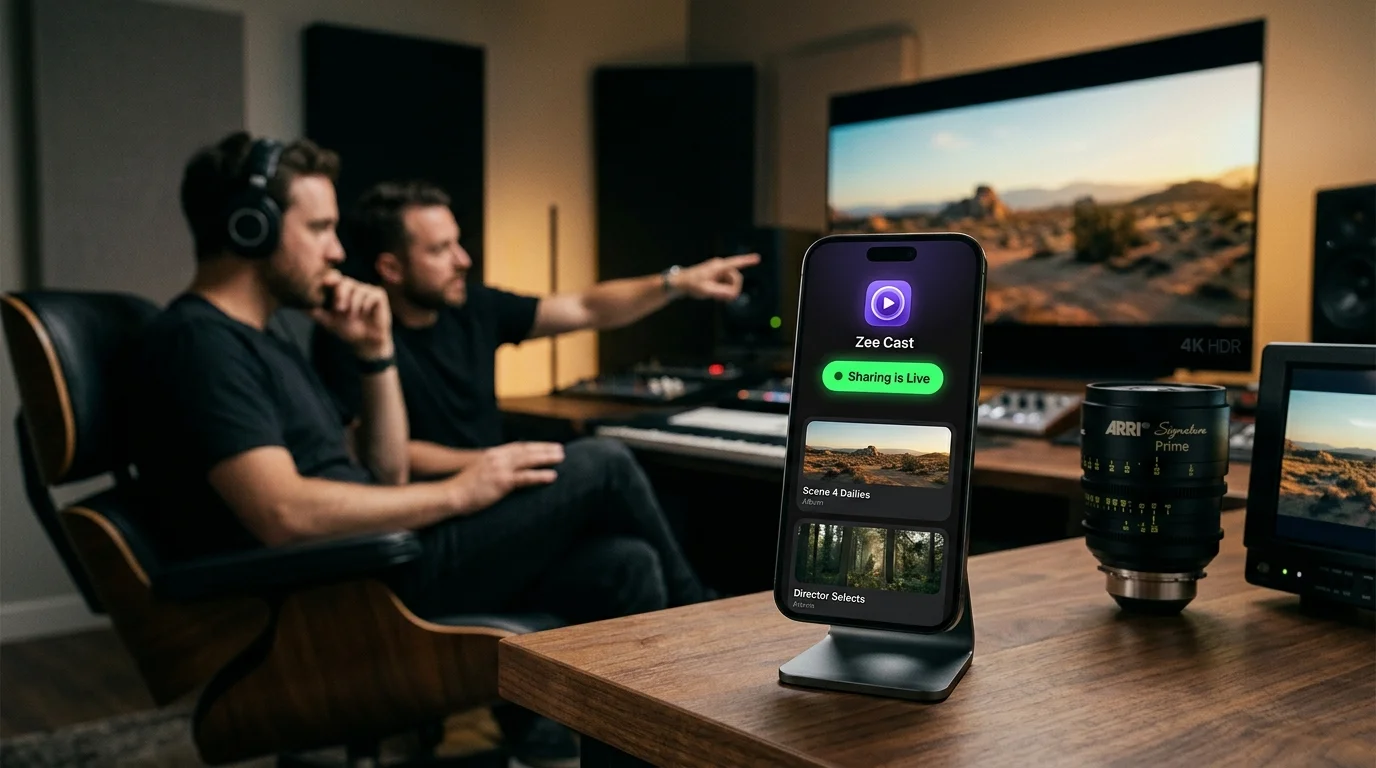
 ⚡ At a Glance: Spatial Video & VR Direct Play Specs ⚡ At a Glance: Spatial Video & VR Direct Play Specs | |
|---|---|
| Target Platform & OS | Meta Quest 3/3S/Pro (4XVR, Skybox VR), Apple Vision Pro & 4K Smart TVs |
| Protocol & Port | DLNA 1.5 / UPnP MediaServer, Port 8080 (HTTP Byte-Range) |
| Connection Type | Local Wi-Fi (5 GHz / Wi-Fi 6 recommended) or Hotspot |
| Transcoding | None (Direct Play Apple MV-HEVC 3D stereoscopic dual-stream) |
| Typical Setup Time | ~90 seconds (Instant UPnP discovery inside VR players) |
Reliving Memories in True Stereoscopic 3D
When Apple introduced Spatial Video recording with the iPhone 15 Pro and expanded it across the iPhone 16 lineup, it redefined mobile videography. By capturing footage simultaneously from the Main 48MP sensor and the Ultra Wide camera spaced ~19mm apart, the iPhone records genuine stereoscopic parallax, capturing depth, physical presence, and lifelike volume.
However, getting those spatial videos off your iPhone and into a VR headset like the Meta Quest 3 or onto a family living room TV has historically been a headache involving slow cloud uploads, cable transfers, or cloud compression that ruins the 3D effect.
Zee Cast solves this instantly: it turns your iPhone into a local UPnP/DLNA media server. VR headsets on your home Wi-Fi can browse your spatial videos directly and decode the dual-view MV-HEVC stream with zero compression and zero cloud lag.
- 1High-bitrate 4K files stream without transcode compression.
4-Step Walkthrough: Stream Spatial Video to Meta Quest 3 & Smart TV
Follow these steps to experience iPhone Spatial Videos inside your VR headset or on your living room display:
- 1
Record Spatial Video on Your iPhone
Open your iPhone's Camera app, switch to Video, rotate the phone to landscape orientation, and tap the Spatial Video icon (the Vision Pro headset icon). Keep your subject between 3 to 8 feet away for optimal stereoscopic depth.
- 2
Stage Videos & Turn On Sharing in Zee Cast
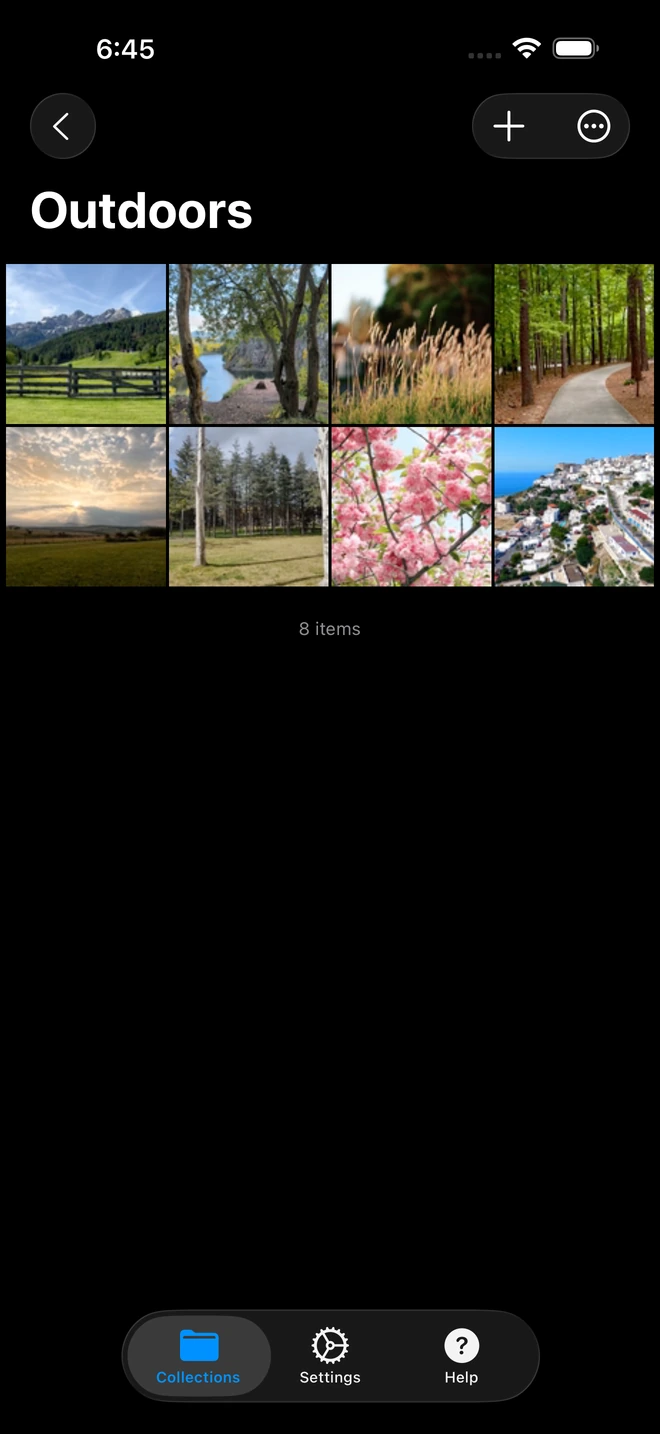
Open Zee Cast on your iPhone. Tap Create Collection, browse your Photos library, and select the clips from the Spatial album. Tap Turn on sharing to start the local UPnP server.
- 3
Open Your Preferred VR Player or TV Input
Put on your Meta Quest 3 or Quest 3S and launch a DLNA-capable player like 4XVR Video Player or Skybox VR. (On a Smart TV, open your TV's built-in Media Player or Sources menu).
Meta Quest 3 / Quest 3S (4XVR) · Menu NavigationOpen 4XVR Player → Select Network → Tap Zee Cast → Select Spatial Video
Meta Quest (Skybox VR) · Menu NavigationOpen Skybox VR → Select Network / DLNA → Choose Zee Cast
 Smart TV (2D Playback) · Menu Navigation
Press Source or Home Dashboard → Select Zee Cast → Play 2D Base View
- 4
Immerse Yourself in 3D Depth
In 4XVR or Skybox VR, the player automatically identifies the MV-HEVC track flags and engages Spatial Video Mode. You can expand the virtual window into a massive 150-inch floating cinema screen with realistic stereoscopic depth.
How MV-HEVC Works Under the Hood
Traditional 3D video relies on Side-by-Side (SBS) or Over-Under (OU) encoding, which cuts horizontal or vertical resolution in half. Apple's MV-HEVC (Multiview High Efficiency Video Coding) implementation is far more sophisticated:
| Format Feature | Side-by-Side (SBS 3D) | Cloud Sync (Google/iCloud) | Apple MV-HEVC via Zee Cast DLNA |
|---|---|---|---|
| Resolution Per Eye | 960×1080 (Halved width) | Compressed / Downscaled | Full 1920×1080 per eye |
| 2D Screen Compatibility | Broken (Shows split double screen) | Depends on web player | 100% Seamless (Plays base track) |
| Transfer Speed | Slow USB export required | 15–30 min cloud upload/download | Instant (Zero transfer wait) |
| Transfer Fidelity | Re-encoded | Cloud compression applied | Bit-for-Bit original camera file |
| Internet Required | No | Yes (Broadband bandwidth) | Zero (100% offline local Wi-Fi) |
Why 4XVR Video Player Is the Ultimate Pairing for Meta Quest
While the Meta Quest operating system's built-in file viewer historically required users to upload spatial videos through the Meta Horizon mobile app, 4XVR Video Player provides an uncompromised direct play experience.
When paired with Zee Cast:
- Zero Cloud Friction: You shoot a spatial video of your kids' birthdays or a family gathering, open Zee Cast, and put on your Quest. In 30 seconds, family members can experience the moment as if they were standing right there.
- Adjustable 3D Depth & Separation: 4XVR allows you to fine-tune the inter-pupillary distance (IPD) rendering and window curve to ensure comfortable viewing without eye fatigue.
- Multi-Headset Local Streaming: Zee Cast's high-performance HTTP server can stream the spatial video file concurrently to multiple Quest headsets in the same living room without bogging down your home network.
💡 Pro Tip: Optimize 5 GHz Wi-Fi for 4K VR Streaming
MV-HEVC spatial video files demand stable throughput to avoid headset stutter. Ensure your iPhone and Meta Quest 3 are connected to a 5 GHz or Wi-Fi 6 network band. Avoid crowded 2.4 GHz bands, which can cause micro-buffering during fast head movements.
Frequently Asked Questions
What is Apple Spatial Video and what file format does it use?
Apple Spatial Video uses the MV-HEVC (Multiview High Efficiency Video Coding) compression standard, defined in ISO/IEC 14496-15. It packages two synchronized 1080p video streams - a primary base view for the left eye and an auxiliary stereoscopic difference view for the right eye - into a single standard QuickTime (.mov or .mp4) container. This format allows both 2D screens and 3D headsets to read the file correctly.
Can Meta Quest 3 play Apple Spatial Videos directly over DLNA?
Yes! Modern VR video players on Meta Quest - most notably 4XVR Video Player and Skybox VR - contain native hardware decoders for Apple's MV-HEVC spatial video profile. When connected to Zee Cast via DLNA, these players read the raw dual-stream video bitstream and project genuine stereoscopic 3D with realistic scale and head tracking.
What happens if I stream an Apple Spatial Video to a regular 2D Smart TV?
Standard 2D Smart TVs (Samsung Tizen, LG webOS, Sony Google TV) simply decode the primary base track (left-eye view) and display it as crisp, high-bitrate 1080p SDR/HDR video. The television ignores the secondary stereoscopic metadata track without crashing or showing split-screen glitches.
Why not upload Spatial Videos to iCloud or Google Drive to view in VR?
Spatial video files are high-bitrate (typically 20–40 Mbps). Uploading gigabytes of footage to the cloud is slow, drains your mobile battery, requires logging into cloud accounts inside the VR headset's clunky browser, and often triggers cloud re-encoding that strips the second eye track. Zee Cast streams directly over your local Wi-Fi router in seconds with 100% original quality.
Which VR apps support DLNA streaming with native MV-HEVC playback?
The gold standard is 4XVR Video Player on Meta Quest Store, which was the first standalone player to support native MV-HEVC decoding over UPnP/DLNA and SMB. Skybox VR Video Player and DeoVR also support Apple Spatial Video direct play over local UPnP servers.
Does Zee Cast compress or strip the 3D stereoscopic tracks?
No. Zee Cast never modifies, transcodes, or re-compresses your media files. It streams the exact bit-for-bit file from your iPhone's storage over standard HTTP/1.1 byte-range requests, preserving the dual-view MV-HEVC bitstream and embedded spatial audio channels.
Can I stream spatial videos to 3D Smart TVs or 3D projectors?
Yes. While few modern TVs feature active 3D glasses, if you own a 3D projector or legacy 3D TV connected to a player like VLC, Kodi, or an Apple TV running Infuse, you can decode the MV-HEVC stream or convert it to Side-by-Side (SBS) format for polarized or active shutter viewing.
Does streaming spatial video consume mobile internet data?
No. Zee Cast communicates strictly over your local Wi-Fi router (or offline mobile hotspot) directly between your iPhone and your VR headset. Zero bytes of cellular or home broadband internet data are consumed.


