
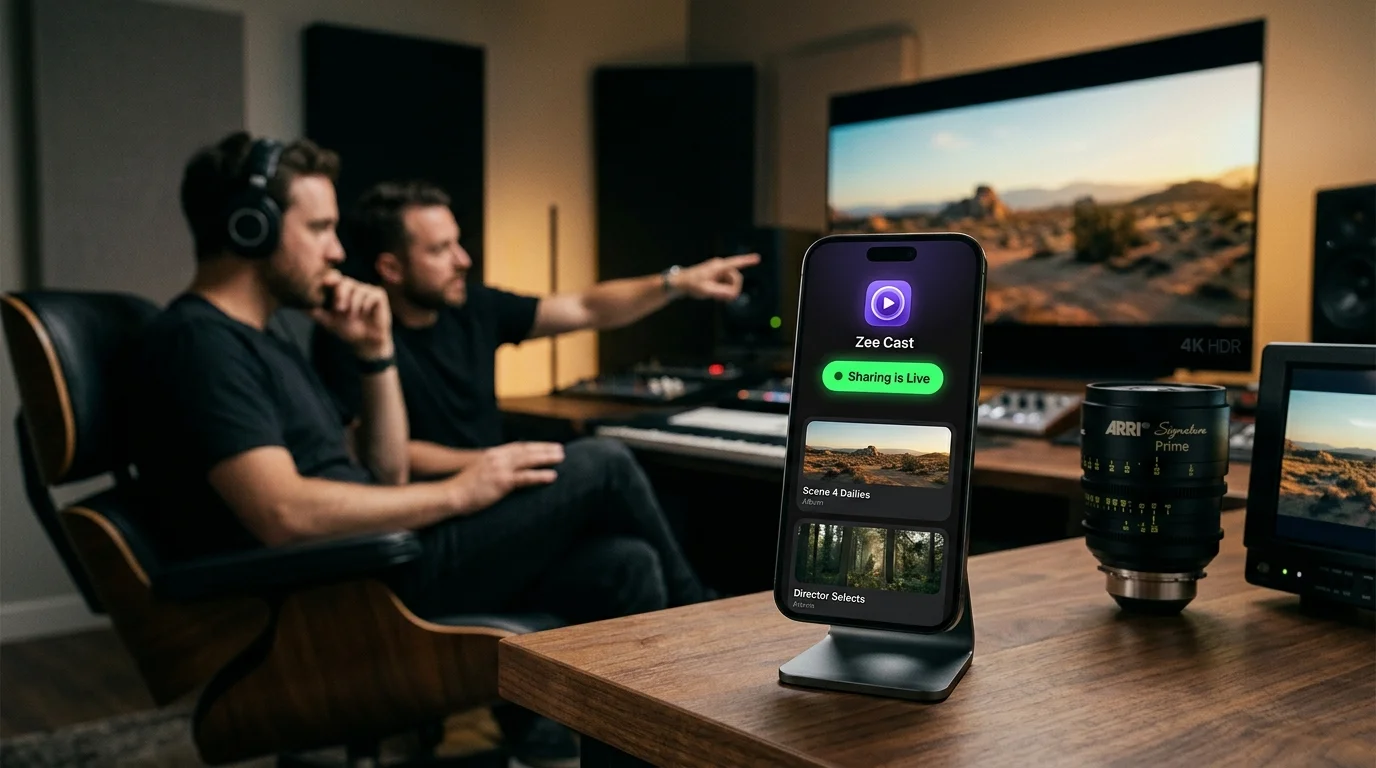
 ⚡ At a Glance: Meta Quest VR Specs ⚡ At a Glance: Meta Quest VR Specs | |
|---|---|
| Target Platform & OS | Meta Quest 3, Quest 3S, Quest 2, Quest Pro (Meta Horizon OS) |
| Protocol & Port | DLNA 1.5 / UPnP MediaServer, Port 8080 (HTTP Range Requests) |
| Connection Type | Local Wi-Fi (5 GHz / 6 GHz Wi-Fi 6E) or Phone Hotspot (0 MB Cellular Data) |
| Transcoding | None (Direct Play MV-HEVC Spatial Video, 4K 60fps HEVC, H.264, 10-bit HDR) |
| Typical Setup Time | ~90 seconds (Network Tab → UPnP → Zee Cast) |
Watch Your Memories on an IMAX-Sized Screen in Virtual Reality
Meta Quest headsets have transformed personal entertainment from small smartphone glass into towering virtual movie theaters. With dual high-resolution displays (2064 × 2208 per eye on Quest 3) and razor-sharp pancake optics, watching your personal vacations, family celebrations, and smartphone videos in VR creates an unmatched sense of immersion.
However, getting 4K camera roll videos or iPhone 15/16 Pro Spatial Videos into your VR headset has traditionally been frustrating:
- Cloud storage bottlenecks: Uploading multi-gigabyte 4K home videos to Google Drive or Dropbox takes forever, compresses bitrate, and flattens stereoscopic 3D into standard 2D.
- Cables and desktop tethers: Connecting your Quest via USB-C to a PC or Mac requires specialized file-transfer utilities (Android File Transfer or SideQuest) and fills up your headset's limited internal storage.
- Screen casting stutter: Casting your phone screen via Miracast or Chromecast mirrors your phone display, draining battery, introducing severe compression artifacts, and blocking phone usage.
Zee Cast solves this completely. By turning your iPhone or Android phone into an ultra-fast, local UPnP/DLNA media server, your Meta Quest headset discovers your phone directly over Wi-Fi. You can stream high-bitrate 4K movies and stereoscopic Spatial Videos bit-for-bit into apps like Skybox VR, 4X-VR, or Bigscreen VR - with zero cables, zero desktop software, and zero cloud uploads.
Open Skybox VR → Select Network tab → Tap Zee Cast → Browse Collections → Play
Step-by-Step Setup Guide: Phone to Meta Quest
Follow these four simple steps to stream 4K and 3D Spatial Videos straight to your VR headset:
- 1
Connect Phone and Quest to the Same Local Network
Verify that your phone and your Meta Quest headset are connected to the same local Wi-Fi router. For optimal 4K 60fps streaming, connect both devices to a 5 GHz or Wi-Fi 6 SSID. If you are away from home or traveling, simply activate your phone's Personal Hotspot and connect your Quest headset to it.
- 2
Turn On Sharing in Zee Cast
Open Zee Cast on your iPhone or Android device. Tap New Collection, select the albums, 4K videos, or Spatial Videos you want to watch in VR, and tap Turn on sharing. Zee Cast instantly broadcasts its presence over your local network using SSDP multicast discovery.
- 3
Launch Your Preferred VR Video Player
Put on your Meta Quest headset and launch your favorite VR media player from your App Library. Skybox VR Video Player and 4X-VR Video Player are strongly recommended for their native UPnP/DLNA handling and automated 3D format detection.
- 4
Select Zee Cast & Enjoy Cinema-Scale Playback
Inside the VR player, select the Network or DLNA tab. You will see Zee Cast listed immediately. Click to enter, choose your collection, and select a video to launch it on a virtual curved IMAX screen, personal cinema hall, or floating mixed reality window.
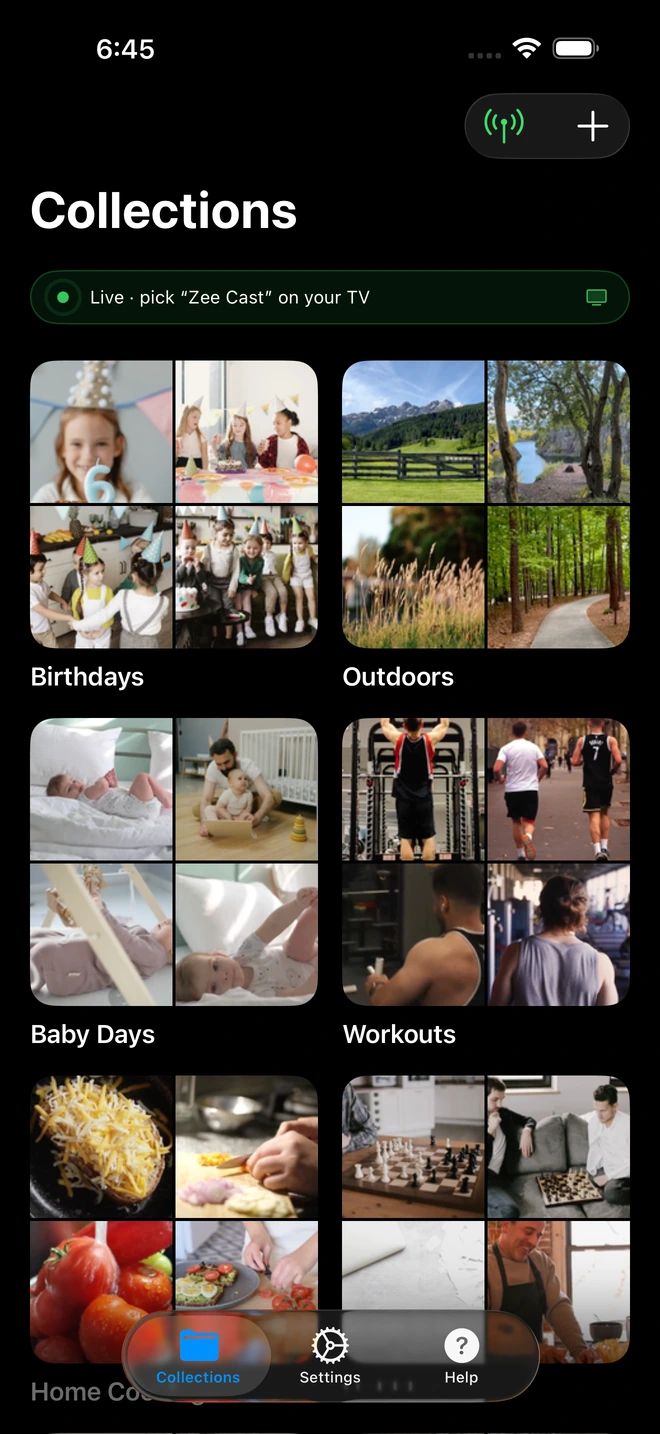
- 1Sharing is Live: TV detects Zee Cast under Connected Devices.
- 2Direct Play streams full-resolution photos & videos without mirroring.
How Spatial Video & MV-HEVC Streaming Works
Apple's iPhone 15 Pro, 15 Pro Max, and iPhone 16 family record stereoscopic video using a cutting-edge video codec called MV-HEVC (Multiview High Efficiency Video Coding). Unlike traditional 3D formats that force left-eye and right-eye frames into a squashed side-by-side (SBS) or over-under (OU) raster, MV-HEVC encodes:
- Primary 2D Base View: A full-resolution 1080p or 4K HEVC video stream that standard 2D players display seamlessly.
- Secondary Stereoscopic View: A secondary delta-encoded HEVC stream containing the right-eye parallax data and disparity vectors.
- Spatial Audio: Multi-channel binaural sound captured by the phone's beamforming microphone array.
When you upload a Spatial Video to standard cloud services or attempt to cast via AirPlay/Miracast, the transmission pipeline strips the secondary multiview layer, reducing your memory to a flat 2D recording.
Because Zee Cast serves raw bitstreams over HTTP without re-encoding, the entire MV-HEVC container is transferred bite-for-byte to your Meta Quest. When decoded by VR media players like Skybox VR (v1.1.7+) or 4X-VR, the headset reconstructs the full stereoscopic parallax, giving your family memories lifelike depth, realism, and presence.
💡 Pro Tip: Switching 3D & Aspect Modes in Skybox VR
If a Spatial Video or 3D home video opens in flat 2D inside Skybox VR, tap anywhere on your Touch Controller to bring up the playback dock. Click the Display Settings (eye icon), and switch the format from 2D to Spatial Video (Apple MV-HEVC), 3D Side-by-Side (SBS), or 3D Over-Under. You can also drag the screen resize slider to expand the display to a 100-foot curved IMAX canvas.
Recommended VR Media Players for Meta Quest
Not all VR video players are created equal. The table below compares the leading DLNA-capable video players available on the Meta Horizon Store:
| VR Video Player | DLNA / UPnP Support | Spatial Video (MV-HEVC) | Virtual Environments | Passthrough / MR |
|---|---|---|---|---|
| Skybox VR Video Player | Native auto-discovery (Network tab) | Full hardware decoding & auto-detection | Grand Cinema, Space Station, Moon, Void | Yes (floating resizable screen) |
| 4X-VR Video Player | Native UPnP & SMB/NFS integration | Full native MVC / MV-HEVC engine | Home Theater, Modern Apartment, Void | Yes (custom curvature & tilt) |
| Bigscreen VR | Built-in DLNA media player (Free) | Standard 2D & 3D SBS/OU (manual toggle) | Retro Cinema, Sci-Fi, Drive-In, Living Room | No (immersive VR environments) |
| Meta Quest Browser / Gallery | Requires web DLNA interface / WebXR | Limited to 2D flat playback | Standard OS window / Void | Yes (Meta window manager) |
⚡ Zero-Buffer VR Playback: 5 GHz & Wi-Fi 6 Configuration
High-bitrate 4K 60fps and Spatial Videos demand steady network throughput of 40–80 Mbps. To prevent micro-stutters in VR:
- Connect your phone and Quest to your router's 5 GHz or 6 GHz (Wi-Fi 6E) band instead of congested 2.4 GHz.
- In Skybox VR, open Settings → Advanced → Cache Buffer and set it to Large (100MB+) to preload scenes ahead of time.
- Disable VPN profiles on your phone while streaming to prevent local multicast traffic from being intercepted.
Meta Quest Hardware & Media Specifications
Zee Cast streams directly to the entire family of standalone Meta Quest headsets running Meta Horizon OS:
| Headset Model | Display Resolution (Per Eye) | Optics | Chipset | Max Decoding Bitrate |
|---|---|---|---|---|
| Meta Quest 3 | 2064 × 2208 (4K+ Infinite Display) | Pancake Lenses | Snapdragon XR2 Gen 2 | Up to 4K 60fps 10-bit HEVC / MV-HEVC (~120 Mbps) |
| Meta Quest 3S | 1832 × 1920 | Fresnel Lenses | Snapdragon XR2 Gen 2 | Up to 4K 60fps HEVC / MV-HEVC (~100 Mbps) |
| Meta Quest 2 | 1832 × 1920 | Fresnel Lenses | Snapdragon XR2 Gen 1 | Up to 4K 60fps 8-bit / 10-bit HEVC (~60 Mbps) |
| Meta Quest Pro | 1800 × 1920 (Quantum Dot Mini-LED) | Pancake Lenses | Snapdragon XR2+ Gen 1 | Up to 4K 60fps HDR10 HEVC (~80 Mbps) |
Official Meta Quest & VR Player Documentation References
For more technical details on VR media playback, spatial computing, and DLNA protocols, consult these official resources:
Frequently Asked Questions
Can I watch iPhone 15 Pro and 16 Pro Spatial Videos on Meta Quest?
Yes. iPhone 15 Pro and iPhone 16 series record stereoscopic 3D video using Multiview High Efficiency Video Coding (MV-HEVC). When you stream these videos directly from Zee Cast to Skybox VR or 4X-VR on Meta Quest 3 or Quest 2 over local DLNA, the player decodes both eye tracks natively, delivering a full stereoscopic 3D spatial experience with realistic depth.
Do I need a PC, Mac, or Link cable to stream phone videos to Quest?
No. You do not need a computer, USB-C Link cables, Air Link, or Virtual Desktop. Zee Cast runs an ultra-lightweight UPnP/DLNA media server directly on your iPhone or Android device, streaming original video files over your local Wi-Fi router or phone hotspot straight into your Quest headset.
Does DLNA streaming compress or downscale my 4K phone recordings?
Not with Zee Cast. Unlike cloud uploads (iCloud, Google Drive, YouTube) or screen-mirroring apps that re-encode and compress video to 1080p, Zee Cast delivers raw byte streams directly via HTTP Range requests. Your Meta Quest hardware video processor decodes the original 4K 60fps HEVC, 10-bit HDR, or MV-HEVC stream at full native bitrate.
Which VR video player is best for streaming DLNA on Meta Quest?
Skybox VR Video Player is the industry standard for DLNA streaming on Meta Quest, offering automated UPnP discovery, curved IMAX environments, and automatic aspect ratio/3D format switching. 4X-VR Video Player is another exceptional option with dedicated support for ISO and advanced MVC 3D decoding. Bigscreen VR also supports DLNA media servers for free social and solo virtual cinema viewing.
Can I stream videos from my phone to Quest when traveling without Wi-Fi?
Yes. Turn on Personal Hotspot on your smartphone and connect your Meta Quest headset to your phone's hotspot Wi-Fi. Open Zee Cast and tap 'Turn on sharing'. Because DLNA communicates over the local wireless link, you can stream full 4K and Spatial Videos on an airplane, in a hotel room, or outdoors with zero cellular data consumption.
Why does my VR player show Spatial Video as a flat 2D screen instead of 3D?
If your player does not auto-detect the stereoscopic format, open the player's in-playback control dock (usually a wrench or eye icon) and switch the 3D mode from '2D Mono' to 'Spatial Video / MV-HEVC' or 'Side-by-Side (SBS)'. Make sure you are using an updated version of Skybox VR or 4X-VR, as standard web browsers and older players only decode the primary 2D base view.
Does Meta Quest support audio passthrough and spatial sound from phone videos?
Yes. Videos recorded on your smartphone with stereo or spatial audio tracks are streamed untouched. Skybox VR and 4X-VR pass the audio tracks through Meta Quest's spatial audio engine, simulating realistic positional acoustic reverberation within virtual cinema halls or void environments.


