

 ⚡ At a Glance: Samsung Smart Monitor Specs ⚡ At a Glance: Samsung Smart Monitor Specs | |
|---|---|
| Target Platform & OS | Samsung Smart Monitors (M5 1080p, M7 4K, M8 4K HDR, Odyssey OLED G6/G8/G9) running Tizen OS |
| Protocol & Port | DLNA 1.5 / UPnP MediaServer, Port 8080 (HTTP Byte-Range) |
| Connection Type | Local Wi-Fi (5 GHz recommended; 0 MB Internet Data) |
| Transcoding | None (Direct Play original 4K HEVC/H.264 camera roll bitstream) |
| Typical Setup Time | ~60 seconds (No PC booted, DeX dock, or cables required) |
The Desk Hybrid: Why Samsung Smart Monitors Are Unique
In modern work-from-home setups and student bedrooms, the Samsung Smart Monitor series - specifically the M5 (27" and 32" Full HD), the popular M7 (32" and 43" 4K UHD), and the flagship M8 (32" 4K HDR with magnetic SlimFit camera and iconic pastel styling) - has redefined the computer monitor. Rather than functioning solely as a passive display panel, these monitors integrate a complete, standalone Tizen OS Smart Hub alongside dedicated Wi-Fi, Bluetooth, stereo speakers, and a sleek SolarCell remote control.
However, when people finish work for the day, they frequently face an annoying inconvenience: you want to show your partner photos from your recent holiday or relax on your desk chair watching a 4K home video clip, but your work laptop is packed away in your backpack, or you don't feel like waking up a power-hungry 500-watt desktop computer just to look at pictures.
Because Samsung Smart Monitors possess the exact same Tizen media engine found in Samsung's flagship Neo QLED and OLED televisions, you can stream media directly from your smartphone to your monitor over local Wi-Fi using Zee Cast - with zero cables, zero PC power, and zero cloud accounts.
🖥️ Zero Computer Booting Required
Your Samsung Smart Monitor does not need a computer connected to its HDMI or USB-C ports to display media. It operates independently as a full-fledged network media player. As long as the monitor has power and is connected to your home Wi-Fi, it discovers Zee Cast on your phone automatically.
Comparing Phone-to-Monitor Streaming Technologies
Users often wonder how DLNA streaming with Zee Cast compares to alternatives like Samsung DeX, Apple AirPlay 2, or physical USB-C cables:
| Capability | Samsung DeX | Apple AirPlay 2 | Physical USB-C Cable | Zee Cast (DLNA Direct Play) |
|---|---|---|---|---|
| Device Compatibility | Samsung Galaxy Flagships only | Apple iOS / iPadOS only | Requires USB-C DP Alt Mode phone | Universal: iPhone & all Android (Pixel, Galaxy, etc.) |
| Cable Free | Wireless or Wired | Wireless | Requires physical cable | 100% Wireless over Wi-Fi |
| Aspect Ratio | Desktop desktop UI | Often black side pillars (letterbox) | Mirrors phone aspect | Native 16:9 full monitor fill |
| Phone Multitasking | Separate desktop mode | Interrupts on screen lock | Mirrored screen | Phone free to lock, chat, or take calls |
| Remote Control Nav | Mouse / Trackpad on phone | Phone touch screen only | Phone touch screen only | Samsung SolarCell remote controls playback |
| Privacy | Exposes desktop windows | Mirrors whole screen alerts | Exposes all notifications | 100% Private: Only chosen files shared |
Architecture: Direct Play to Samsung Smart Monitor
The media transmission between your phone and your Samsung Smart Monitor operates entirely over your local home network without passing through cloud servers:
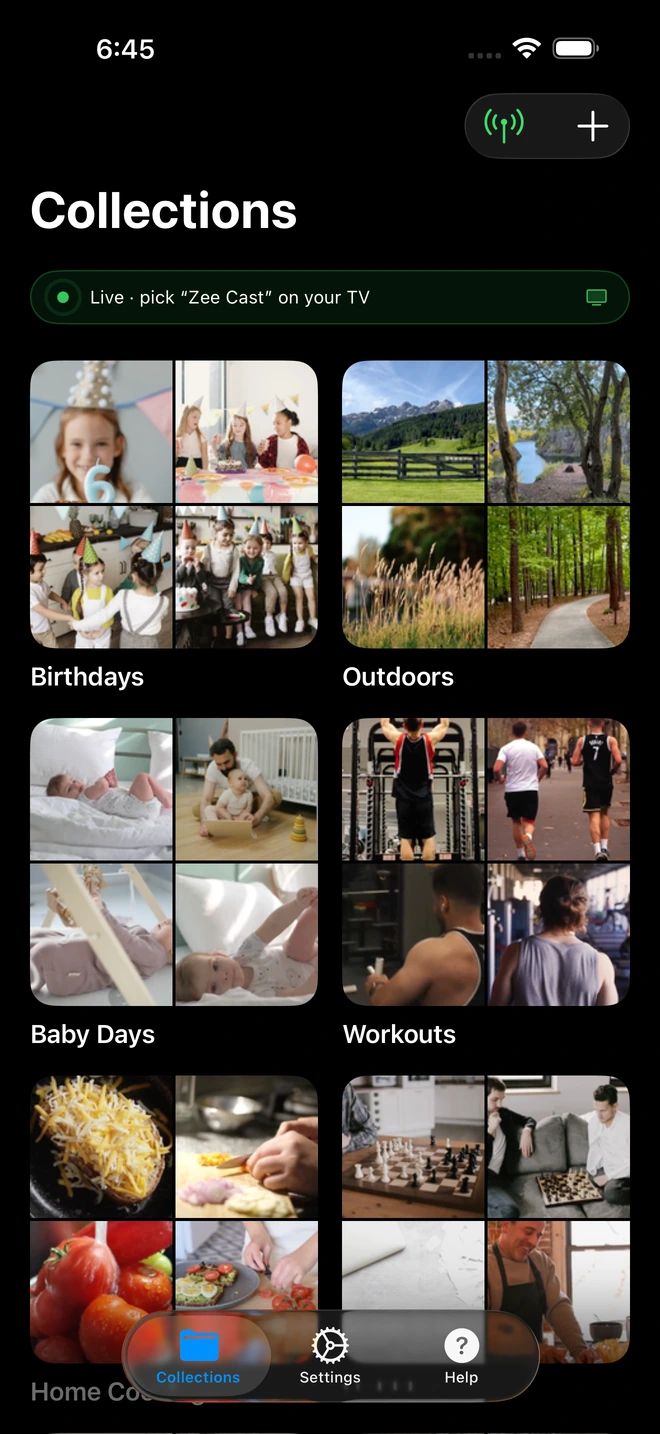
- 1Server is live - instantly discoverable on TV.
When you stream to your Samsung Smart Monitor:
- Zero Video Transcoding: High-bitrate 4K 60fps clips recorded on an iPhone 16 Pro or Samsung Galaxy S24 Ultra are transferred in their original HEVC (H.265) format. There is no CPU re-encoding penalty on your phone.
- Monitor Hardware Acceleration: The Samsung Smart Monitor's internal image processor decodes the video bitstream in real time, delivering silky 60fps motion, crisp HDR highlights, and rich color accuracy.
- Standard HTTP Range Requests: Fast-forwarding and rewinding through video timelines is instantaneous because the monitor issues standard byte-range requests directly to Zee Cast's local HTTP server.
Step-by-Step Setup: Stream to Your Samsung Smart Monitor
Get your phone connected to your Samsung Smart Monitor in four effortless steps:
- 1
Connect Both Devices to 5 GHz Home Wi-Fi
Ensure your smartphone and your Samsung Smart Monitor are connected to the same local Wi-Fi router. For optimal 4K video playback with zero buffering, connect both devices to the 5 GHz frequency band.
- 2
Curate Media & Start Sharing in Zee Cast
Open Zee Cast on your iPhone or Android. Select the vacation photos, home movies, or downloaded videos you want to enjoy on your monitor into a collection. Tap Turn on sharing to launch your local UPnP server.
- 3
Select Zee Cast on Your Samsung Monitor
Pick up your Samsung SolarCell remote control and navigate to the media sources menu:
Samsung Smart Monitor (M5, M7, M8, Odyssey) · Menu NavigationPress Home → Navigate to Connected Devices (or Sources) → Select Zee Cast under Media Servers
- 4
Browse Photos & Enjoy 4K Video Playback
Use the directional arrows on your Samsung remote to browse your collections. Photos open instantaneously in native full-panel resolution, and videos play back with buttery-smooth hardware acceleration. You can now lock your phone and set it aside!
Audio Capabilities on Samsung Smart Monitors
Samsung Smart Monitors offer versatile audio routing options when streaming media:
- Built-in Stereo Speakers: The M7 and M8 feature surprisingly full-bodied built-in speakers (with Adaptive Sound on the M8). When streaming home movies, audio plays directly through the monitor without requiring external speakers.
- Bluetooth Headphone Pairing: If someone else is sleeping in the room or working nearby, you can pair your AirPods, Galaxy Buds, or Sony WH-1000XM5 headphones directly to the monitor's Bluetooth menu (Settings → Sound → Sound Output → Bluetooth Speaker List) for private listening.
- External Soundbar via HDMI eARC / Optical: If your desk setup includes a dedicated audio soundbar, audio automatically passes through with crisp multi-channel clarity.
🌟 Pro Tip: Pin Zee Cast to Your Tizen Home Bar
To make streaming even faster, navigate to Connected Devices on your Samsung Smart Monitor, hover over the Zee Cast tile, press and hold the center Select button on your remote, and choose Add to Home. Zee Cast will now sit right next to your favourite streaming apps on the main Tizen launch ribbon.
Frequently Asked Questions
Do I need to power on my desktop PC or plug in a USB-C cable to view phone photos?
No. Unlike conventional computer monitors that are inert without an active PC input signal, Samsung Smart Monitors (M5, M7, M8) run Samsung's complete Tizen OS standalone. They feature their own Wi-Fi hardware, processors, and built-in DLNA media players. You can stream media straight from your phone over Wi-Fi without waking your work PC or connecting any cables.
How does DLNA compare to Samsung DeX or AirPlay 2 on the Smart Monitor?
Samsung DeX requires a compatible Samsung Galaxy flagship and takes over the monitor with a full desktop environment, while AirPlay 2 is limited to Apple devices and frequently letterboxes photos. Furthermore, screen mirroring mirrors your phone screen live, revealing private notifications and draining battery. DLNA Direct Play via Zee Cast works universally across both iPhone and Android (including Google Pixel), delivers full 16:9 native fill, lets you lock your phone screen, and preserves battery.
Does this work on all Samsung Smart Monitor models (M5, M7, M8, and Odyssey OLED)?
Yes. All Samsung Smart Monitor series - including the M5 (1080p FHD), M7 (4K UHD), M8 (4K UHD HDR with magnetic SlimFit camera), and Odyssey OLED smart gaming monitors (G6, G8, G9) - run Tizen OS and include the exact same hardware-accelerated UPnP/DLNA client engine.
Can I control playback, pause, and seek using the Samsung SolarCell remote control?
Yes. Because Zee Cast supports standard UPnP ContentDirectory and HTTP byte-range specifications, your Samsung SolarCell remote works seamlessly. You can press Play, Pause, Skip, and seek along the timeline using your remote's directional pad just like a native Smart TV app.
Does streaming to the Samsung Smart Monitor require a Samsung account or SmartThings app?
No. You do not need to log into a Samsung account, install the Samsung SmartThings app, or sync anything to Samsung Cloud. Zee Cast operates strictly on open, local UPnP/DLNA standards over your local Wi-Fi network, ensuring zero vendor lock-in and complete privacy.
Does streaming camera roll media over DLNA consume my home internet bandwidth?
No. All media data flows strictly within your local home Wi-Fi network between your phone and your monitor. Zee Cast consumes zero kilobytes of internet data (0 MB data usage) and works flawlessly even if your ISP internet connection is temporarily offline.
Can I lock my phone screen or take phone calls while the Samsung Smart Monitor plays video?
Yes. Zee Cast operates as a lightweight background service. Once playback starts on your Smart Monitor, you are free to lock your phone, answer calls, chat on messaging apps, or work on documents without disrupting the video or slideshow on screen.
Does the Samsung Smart Monitor support 4K 60fps HDR video recorded on iPhone 16 Pro and Galaxy S24?
Yes. The Samsung Smart Monitor M7 and M8 feature 4K panels with dedicated hardware decoders for HEVC (H.265) 10-bit HDR. Zee Cast serves the original bit-for-bit file without transcoding, allowing the monitor's processor to display razor-sharp 4K 60fps footage with vibrant HDR colors.
Where do I find Zee Cast in the latest Tizen OS interface on Samsung Smart Monitors?
On Tizen OS 6.5 through 8.0, press the Home button on your remote. In the left navigation menu, select 'Connected Devices' (or scroll down to 'Sources'). Zee Cast will appear under the 'Media Servers' section. You can even pin it to your Home bar for one-click access.


