

 ⚡ At a Glance: NVIDIA Shield TV Specs ⚡ At a Glance: NVIDIA Shield TV Specs | |
|---|---|
| Target Platform & OS | NVIDIA Shield TV Pro & Shield TV (Android TV 11+ / SHIELD Experience 9+) |
| Protocol & Port | DLNA 1.5 / UPnP MediaServer, Port 8080 (HTTP Range RFC 7233) |
| Connection Type | Gigabit Ethernet (1000BASE-T) or 5 GHz Wi-Fi 802.11ac / Hotspot |
| Transcoding | None (Direct Play 4K 60fps HEVC, 10-bit HDR10, Dolby Vision 8.4, LPCM) |
| Typical Setup Time | ~60 seconds (VLC → Browse → Local Network → Zee Cast) |
Cinephile-Grade Playback for Your Smartphone Camera Roll
The NVIDIA Shield TV Pro remains the undisputed champion of home theater streaming devices. Powered by the NVIDIA Tegra X1+ processor with a 256-core GPU, it delivers full hardware decoding for high-bitrate 4K 60fps video, native Dolby Vision, lossless Dolby Atmos audio passthrough, and revolutionary real-time AI-enhanced upscaling.
Modern flagship smartphones - such as the iPhone 15/16 Pro series, Samsung Galaxy S24/S25 Ultra, and Google Pixel 9 Pro - capture stunning 4K 60fps HDR10 and Dolby Vision videos at bitrates exceeding 60 to 100+ Mbps. Yet most users watch these breathtaking clips on tiny mobile screens or endure compressed, stuttering screen-mirroring over Chromecast.
Traditional home theater solutions require setting up a 24/7 dedicated desktop server running Plex, Emby, or Jellyfin, or building a noisy, power-hungry NAS. For personal camera roll footage, this introduces unnecessary complexity, electricity consumption, and transcoding artifacts.
Zee Cast eliminates this friction. By serving your smartphone's media directly over local UPnP/DLNA, your NVIDIA Shield TV connects straight to your phone over Gigabit Ethernet or 5 GHz Wi-Fi. You get bit-perfect, zero-transcode Direct Play on your living room OLED TV - instantly, silently, and securely.
Open VLC → Browse tab → Local Network → Select Zee Cast → Play
Quick 4-Step Setup: Phone to NVIDIA Shield TV
Stream your 4K 60fps videos and high-resolution photo collections to NVIDIA Shield TV in four simple steps:
- 1
Connect Both Devices to the Same Local Network
Connect your NVIDIA Shield TV (via Gigabit Ethernet cable or 5 GHz Wi-Fi) and your smartphone to your home network router. Wired Ethernet on the Shield ensures maximum bandwidth for 100+ Mbps high-bitrate video streams.
- 2
Turn On Sharing in Zee Cast
Open Zee Cast on your iPhone or Android phone. Curate the albums, vacation clips, or 4K HDR home movies you want to showcase into a collection, and tap Turn on sharing.
- 3
Launch Your Preferred Android TV Media Player
On your Shield TV, launch VLC for Android, Kodi, or Nova Video Player from your Android TV apps grid. All three apps feature built-in UPnP/DLNA network browsing.
- 4
Select Zee Cast & Stream in Original Quality
In VLC, click Browse > Local Network and select Zee Cast. In Kodi, select Videos > Files > UPnP Devices. Click your collection to start lossless 4K playback immediately.
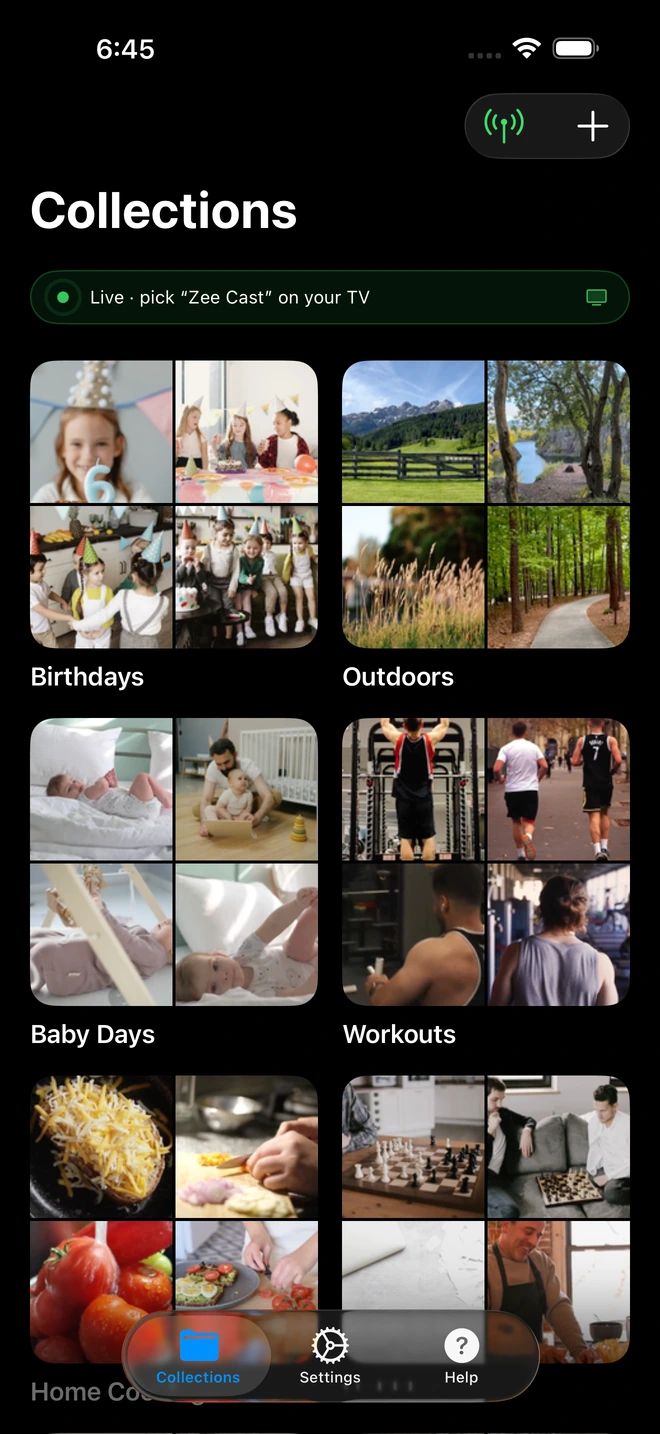
- 1Server is live - instantly discoverable on TV.
Why Cinephiles Choose Zee Cast Over Desktop Servers
Home theater enthusiasts love high-fidelity audio and video, but maintaining a home media server for smartphone footage is overkill:
| Capability | 24/7 Desktop Server (Plex / NAS) | Screen Mirroring (Chromecast) | Zee Cast Direct Play |
|---|---|---|---|
| Power Consumption | 40W – 150W continuous (idle 24/7) | High phone battery drain (active screen) | Zero idle power (on-demand phone server) |
| Video Quality | Frequent transcoding down to 8-bit | Lossy H.264 compression with frame drops | 100% bit-perfect original stream (Direct Play) |
| Dolby Vision / HDR | Metadata frequently lost in transcodes | Stripped down to standard Rec.709 SDR | Native 10-bit Dolby Vision Profile 8.4 & HDR10 |
| Hardware Upscaling | Server-side Lanczos or Bilinear filter | Compressed 1080p mirror | NVIDIA Tegra X1+ real-time AI upscaling |
| Setup Time | Hours (libraries, ports, accounts) | Instant, but unstable | ~60 seconds, zero accounts required |
Leveraging the Tegra X1+ Hardware Decoding Engine
The NVIDIA Shield TV Pro is equipped with dedicated hardware video decoding blocks (NVDEC) capable of decoding HEVC Main10, VP9 Profile 2, and H.264 at extreme bitrates. When Zee Cast serves files via HTTP Range requests (RFC 7233):
- Zero Server Load: Zee Cast merely reads raw data blocks from mobile flash storage and streams them via TCP socket. The phone CPU operates at < 3% utilization.
- Full NVDEC Offload: The Tegra X1+ GPU hardware parses the NAL units and passes raw YUV 4:2:0 10-bit planes directly to the display processor.
- AI-Enhanced Upscaling: When playing 1080p or 720p phone videos, the Shield's deep neural network sharpens edges, restores texture clarity, and upscales the picture to 4K in real time without lag.
💡 Pro Tip: Enable Auto Frame Rate (AFR) Matching in Kodi
Phone cameras record video at various framerates: 24.0 fps (cinematic mode), 29.97/30 fps (standard), or 59.94/60 fps (smooth action). To eliminate judder caused by 60Hz 3:2 pulldown conversion:
In Kodi on your Shield TV, open Settings → Player → Videos. Under the Playback section, set Adjust display refresh rate to 'On start / stop'. Your TV will automatically switch its native refresh rate to match your phone recording perfectly!
Comparing Media Player Apps on NVIDIA Shield TV
Depending on your audio/video priorities, you can select from several top-tier Android TV media players:
| Media Player | Interface Simplicity | Audio Passthrough | Auto Frame Rate (AFR) | Best Used For |
|---|---|---|---|---|
| VLC for Android | Easiest (Zero setup required) | Dolby Digital, DTS, Stereo PCM | System default (60Hz) | Quick casual viewing of phone clips & photos |
| Kodi 20/21 (Nexus/Omega) | Advanced (Media Center UI) | Dolby TrueHD, Atmos, DTS-HD MA | Native automatic refresh rate matching | Audiophiles & videophiles with AV receivers |
| Nova Video Player | Medium (Clean TV poster grid) | Dolby Digital Plus (E-AC-3) & DTS | Built-in AFR toggle | Beautiful UI with automatic metadata scrapers |
🔒 Security: Per-IP Device Approval
When streaming on a shared family or apartment network, you don't want roommates or guests browsing your phone's personal media without permission. Zee Cast includes Device Approval: when your NVIDIA Shield TV connects for the first time, a prompt appears on your phone screen with the Shield's local IP address. Tap Allow to grant streaming access, or Deny to immediately block the connection.
Official NVIDIA Shield TV & Media Documentation References
For more technical details on Shield TV hardware decoding and UPnP configurations, check out these official links:
Frequently Asked Questions
Can NVIDIA Shield TV play iPhone 4K 60fps Dolby Vision videos over DLNA?
Yes. iPhone 12 Pro through iPhone 16 Pro capture video in Dolby Vision Profile 8.4 (with an HLG base layer). When streamed over Zee Cast to Kodi or Nova Video Player on the NVIDIA Shield TV Pro, the Shield's Tegra X1+ processor decodes the 10-bit HEVC stream and triggers native Dolby Vision or HDR10 output on your 4K OLED or Mini-LED TV.
Why use Zee Cast instead of running a 24/7 Plex or Jellyfin server?
Running a dedicated desktop Plex, Jellyfin, or NAS server 24/7 consumes 50 to 150 Watts of idle power, requires constant software updates, and often triggers unwanted video transcoding that degrades camera roll footage. Zee Cast turns your phone into an on-demand, battery-efficient UPnP server only when you want to watch media, streaming raw original files at zero idle electricity cost.
Does NVIDIA Shield TV AI-Enhanced Upscaling work on Zee Cast streams?
Yes. The Tegra X1+ processor's real-time AI-Enhanced Upscaling functions with media streamed over local DLNA in VLC, Kodi, and Nova Video Player. If you stream 1080p home videos or older phone recordings from Zee Cast, the Shield applies real-time deep neural network sharpening up to 4K 60fps before sending the signal to your TV panel.
Which media player on NVIDIA Shield provides the best DLNA experience?
Kodi (v20 Nexus or v21 Omega) is the top choice for cinephiles because it supports Auto Frame Rate (AFR) switching to match exact camera framerates (e.g. 24.000, 29.97, 59.94, or 60.00 fps) and lossless audio passthrough (Dolby TrueHD, DTS-HD MA). VLC for Android TV is the simplest plug-and-play option requiring zero configuration under Browse > Local Network.
Can I stream high-bitrate Apple ProRes or 8K video from phone to Shield TV?
The NVIDIA Shield TV Pro decodes standard 4K 60fps 10-bit HEVC (H.265) and H.264 at bitrates up to 140+ Mbps effortlessly over Gigabit Ethernet or 5 GHz Wi-Fi. Uncompressed ProRes 422 HQ files at 200+ Mbps can be played directly through Kodi's multi-threaded FFmpeg software/hardware pipeline. However, 8K video files will be downscaled by the player or must be captured in 4K for native 60fps hardware acceleration.
Will streaming over DLNA drain my phone's battery quickly?
No. Unlike screen mirroring (Chromecast or AirPlay) which continuously encodes your phone's screen buffer, Zee Cast simply acts as a high-speed HTTP file server. The heavy decoding and rendering workload is handled 100% by the NVIDIA Shield's Tegra GPU and hardware VPU. Your phone's screen can be locked and asleep while your video streams uninterrupted.
Does Zee Cast require an active internet connection to stream to Shield TV?
No. Zee Cast and NVIDIA Shield communicate strictly over your local Wi-Fi router or wired Ethernet switch. Zero megabytes of data are sent to the cloud, ensuring total privacy for personal home videos and zero buffering caused by external ISP throttling.


