
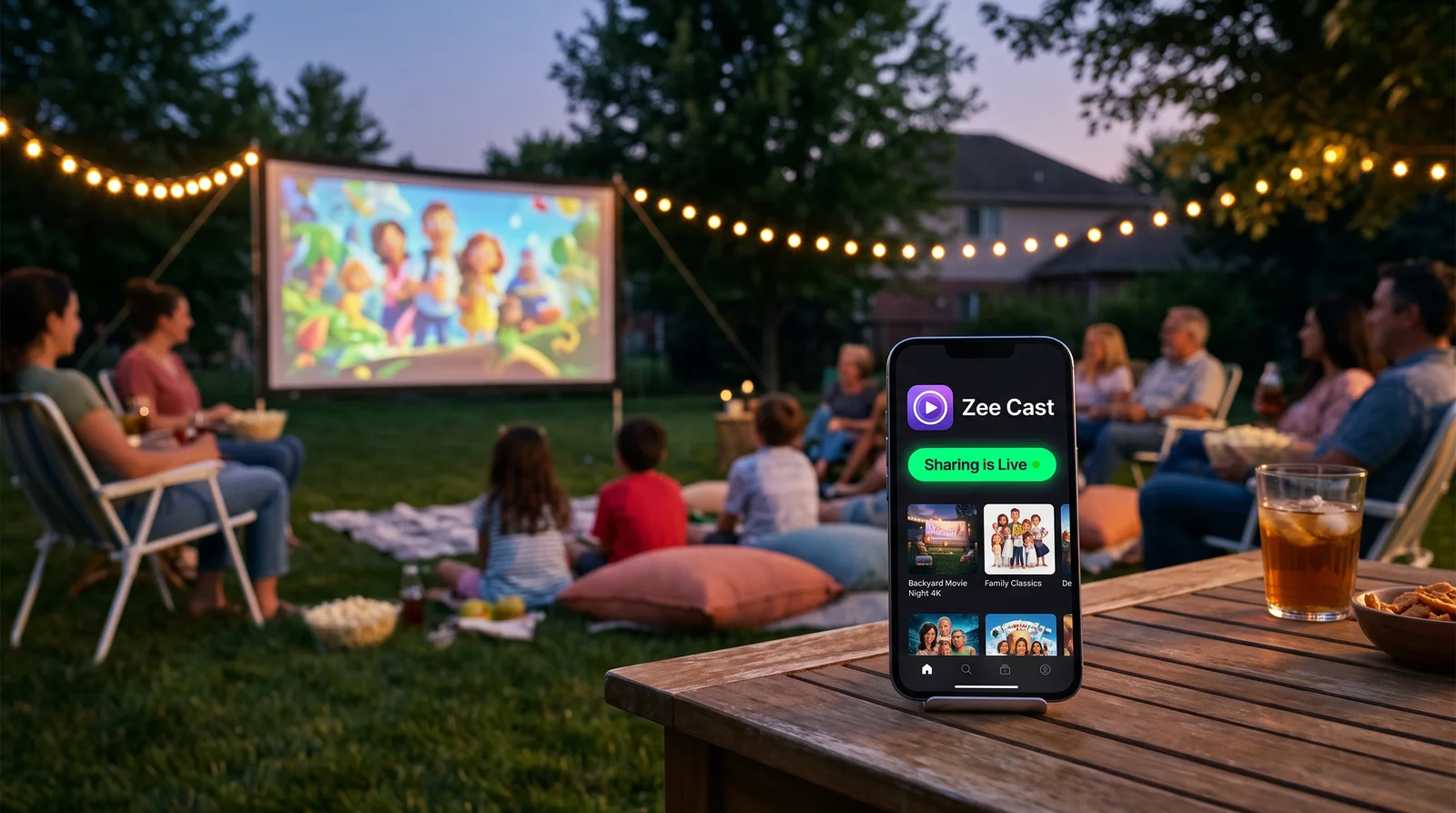
 ⚡ At a Glance: Smart Projector Specs ⚡ At a Glance: Smart Projector Specs | |
|---|---|
| Target Platform & OS | Smart Projectors (Android TV, Google TV, Samsung Freestyle Tizen, Dangbei, BenQ) |
| Protocol & Port | UPnP / DLNA 1.5 MediaServer, Port 8080 |
| Connection Type | Phone Personal Hotspot (0 MB Cellular Data Used) |
| Transcoding | None (Lossless Direct Play to Projector GPU) |
| Typical Setup Time | ~90 seconds (Fully Offline & Wireless) |
The Wireless Challenge: Streaming Outdoors and on the Go
Smart projectors have revolutionized entertainment - enabling backyard movie nights under the stars, camping projections against tents or camper vans, bedroom ceiling cinemas, and on-the-fly business presentations. Leading portable projectors from XGIMI (Halo, MoGo), Anker Nebula (Capsule, Mars), and Samsung (The Freestyle) pack brilliant 1080p and 4K displays with built-in batteries and stereo speakers.
However, when you step outside the range of your home Wi-Fi router, connecting your smartphone to your projector becomes a major hassle:
- No Wi-Fi Router in Sight: In a campground, backyard, RV park, or hotel room, there is no shared home network for AirPlay or Google Cast to discover devices.
- Clunky Dongles & Expensive Cables: HDMI cables require USB-C or Lightning adapters that tether your phone to the projector, risk tripping hazards in the dark, and prevent you from holding or using your phone.
- Laggy Screen Mirroring: Miracast screen mirroring is notorious for stuttering audio, dropped frames, overheating phones, and displaying intrusive incoming text messages on a 100-inch projection.
- USB Drive Hassles: Copying video files to USB thumb drives requires a computer, reformatting drives (FAT32 vs exFAT), and lacks support on iPhones altogether.
The Secret: Your Phone's Hotspot as an Offline Local LAN
You do not need an external Wi-Fi router or an internet connection to stream movies to your projector. Modern smartphones (iPhone and Android) can create their own private wireless network using Personal Hotspot.
When your smart projector connects to your phone's hotspot Wi-Fi, the phone assigns the projector an IP address (typically 172.20.10.x on iOS or 192.168.43.x on Android). This establishes a full high-speed local network (WLAN) operating at speeds exceeding 150–300 Mbps - entirely independent of cellular towers.
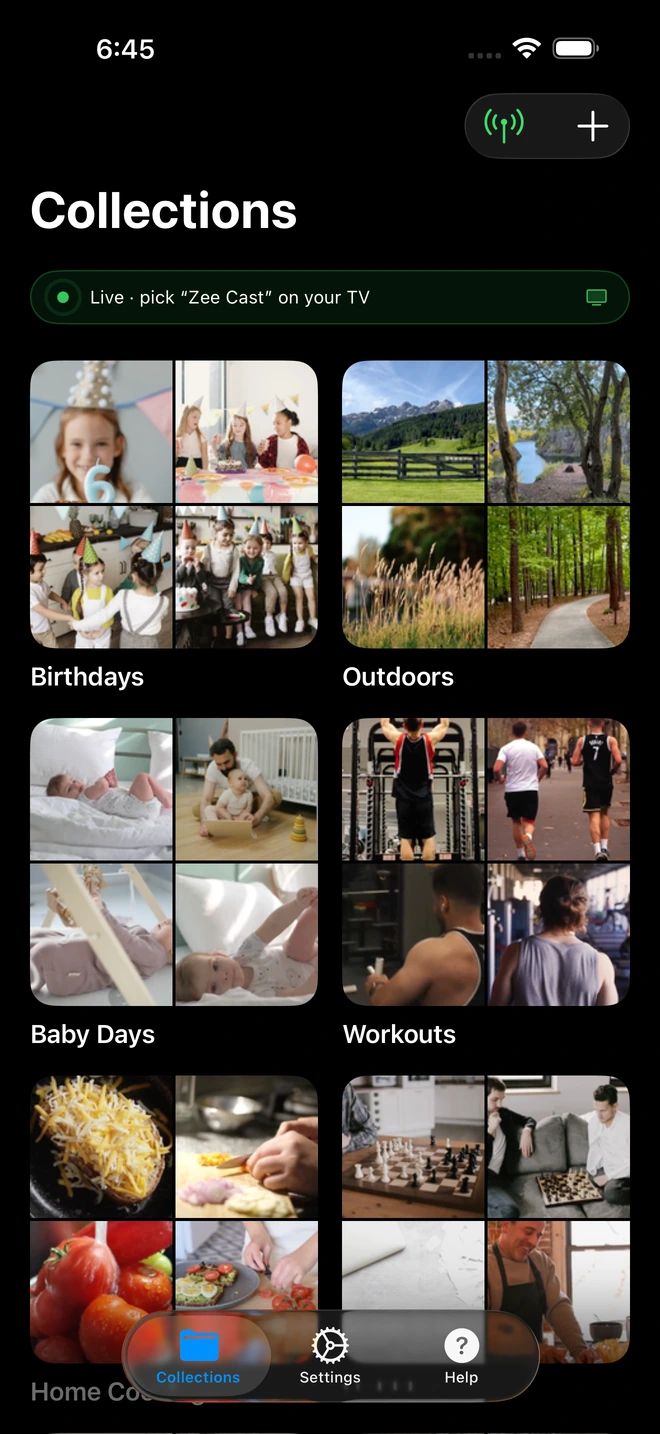
- 1Sharing is Live: TV detects Zee Cast under Connected Devices.
- 2Direct Play streams full-resolution photos & videos without mirroring.
📶 Zero Cellular Data Consumption Guarantee
Many users worry that turning on Personal Hotspot will burn through expensive monthly mobile data. With Zee Cast, media files are stored locally on your phone's internal storage and transferred directly across the hotspot's Wi-Fi radio to the projector. 0 MB of cellular data is used. It works even in airplane mode (with Wi-Fi Hotspot re-enabled) or in deep wilderness with zero cellular reception!
Step-by-Step Setup: Connect Phone to Smart Projector
Get your outdoor cinema running in less than 90 seconds by following this straightforward four-step guide:
- 1
Turn On Personal Hotspot on Your Phone
On iPhone, go to Settings > Personal Hotspot and turn on "Allow Others to Join" (ensure "Maximize Compatibility" is toggled ON if your projector only supports 2.4 GHz). On Android, open Settings > Network & Internet > Hotspot & Tethering and enable Wi-Fi Hotspot.
- 2
Connect Your Projector to the Hotspot
Turn on your smart projector. Open its Settings > Network & Internet menu, locate your phone's hotspot SSID in the list of Wi-Fi networks, and enter your password. Your projector is now directly networked to your phone.
Smart Projector (Android TV / Google TV) · Menu NavigationOpen Settings → Network & Internet → Connect to Phone Hotspot
- 3
Launch Zee Cast and Turn On Sharing
Open Zee Cast on your phone. Create a collection containing the feature films, personal video clips, or photo albums you want to display on the big screen. Tap Turn on sharing to start the UPnP server.
- 4
Open VLC on Projector & Stream
On your smart projector, launch VLC (or Nova Video Player). Navigate to Browse > Local Network. Select Zee Cast, choose your collection, and press play. Sit back and enjoy crystal-clear projection with full projector remote control.
Comparison: Projector Connection Methods Compared
Here is how local DLNA streaming over Personal Hotspot stacks up against traditional ways of connecting a phone to a projector:
| Method | Wireless | Needs Internet | Video Quality | Battery Drain | Phone Freedom |
|---|---|---|---|---|---|
| Zee Cast (Hotspot DLNA) | Yes (100% Cord-free) | No (0 MB Data) | Native 4K / 1080p Direct Play | Minimal (Low CPU server) | Complete (Lock or use phone) |
| Screen Mirroring (Miracast/AirPlay) | Yes | No | Compressed 720p/1080p (30fps lag) | Severe (25-35%/hr, phone runs hot) | Blocked (Screen mirrored live) |
| HDMI Cable & Adapter | No (Clunky cables & adapters) | No | Good (1080p/4K) | Moderate (Powers HDMI display) | Tethered (Cannot walk away) |
| USB Flash Drive | No (Dongle required) | No | Native file play | None | Not usable with iPhone photos |
Supported Smart Projector Brands and Models
This hotspot streaming setup works seamlessly across virtually all portable and smart home theater projectors currently on the market:
🎥 XGIMI Projectors
Running official Android TV or Google TV: XGIMI Halo+, MoGo 2 Pro, Horizon Ultra, Aura, Elfin. Install VLC for Android TV from the built-in Google Play Store for instant DLNA discovery.
🔋 Anker Nebula Projectors
Portable favorites: Nebula Capsule 3 Laser, Mars 3, Mars 3 Air, Apollo, Cosmos Laser 4K. Download VLC or Nova Video Player from Nebula Play or Google Play Store to stream over hotspot.
🎨 Samsung The Freestyle
The popular swivel projector: The Freestyle (Gen 1 & Gen 2) runs Samsung Tizen OS. No app install needed - Zee Cast appears automatically under "Connected Devices" in the Smart Hub.
⛺ BenQ, Dangbei & JMGO
Outdoor projectors: BenQ GV30, GS50, Dangbei Mars Pro, Dangbei Atom, JMGO N1 Ultra. Full Android TV / Google TV operating systems with built-in hardware decoding.
Audio Optimization for Outdoor Screenings
When hosting an outdoor movie night, great sound is just as important as a great picture. Because the smart projector decodes and plays the video stream directly from Zee Cast, the projector manages all audio output:
- Bluetooth Speakers / Soundbars: Pair your outdoor Bluetooth speaker (such as a JBL Boombox, Sonos Move, or Soundcore Motion Boom) directly to your projector's Bluetooth settings - not your phone. This guarantees zero audio lip-sync delay with the projected image.
- 3.5mm Aux Out: Most smart projectors feature an analog 3.5mm audio jack for connecting wired PA systems or external powered speakers without Bluetooth latency.
- Headphone Mode: If you are camping late at night or in a quiet RV campground, pair your Bluetooth earbuds (AirPods, Galaxy Buds) directly to the projector for immersive, private cinema sound.
💡 Pro Tip for iPhone Hotspot Streaming
On iPhone, toggle "Maximize Compatibility" ON under Settings > Personal Hotspot if your projector struggles to find your hotspot network. This switches your iPhone hotspot from a 5 GHz band to a universal 2.4 GHz band, ensuring compatibility with all older and budget projector Wi-Fi chips.
Frequently Asked Questions
Does streaming over Personal Hotspot consume my mobile cellular data plan?
No. When your projector connects to your phone's Personal Hotspot, a local Wi-Fi local area network (LAN) is established directly between the two devices. Zee Cast streams video files and photos directly across this local radio link via UPnP/DLNA HTTP byte-range transfers. Your cellular data plan is not used at all for video playback (0 MB cellular data consumed), even if you have cellular data turned off or are in an area with zero cellular reception.
Can I connect an iPhone to a projector without Wi-Fi, Apple TV, or an HDMI adapter?
Yes. By turning on your iPhone's Personal Hotspot and launching Zee Cast, your iPhone acts as a portable DLNA media server. Smart projectors running Android TV (XGIMI, Nebula) or Tizen (Samsung Freestyle) connect directly to your iPhone's hotspot Wi-Fi. Free apps like VLC for Android TV detect Zee Cast instantly over the hotspot network.
What media player app should I use on my Android TV or Google TV smart projector?
We strongly recommend 'VLC for Android' (available free on the Google Play Store on your projector) or 'Nova Video Player'. Both feature instant UPnP auto-discovery, native hardware video decoding for 4K HEVC and H.264 files, and full projector remote control support.
How do I stream to the Samsung Freestyle projector outdoors without Wi-Fi?
The Samsung Freestyle runs Tizen OS, which includes Samsung's built-in DLNA client. Connect The Freestyle to your phone's mobile hotspot. Once Zee Cast is sharing, press the Home button on The Freestyle's remote, scroll to 'Connected Devices' or 'Sources', and select Zee Cast. You do not need any third-party app on The Freestyle.
Why is hotspot DLNA streaming better than screen mirroring on a projector?
Screen mirroring (Miracast or AirPlay mirroring) requires constant real-time screen encoding, which drains your phone battery rapidly, introduces stutter and audio desync, downscales video to 720p or 1080p, and mirrors your phone's portrait aspect ratio. DLNA streaming with Zee Cast serves the raw, full-resolution file to the projector's GPU, leaves your phone screen free to lock or use for texting, and saves hours of battery life.
What if my projector does not have a smart operating system (no built-in apps)?
If you have a traditional projector with only HDMI ports, you can plug in an inexpensive streaming stick like a Google TV with Chromecast, Amazon Fire TV Stick, or Roku Streaming Stick powered by a portable USB power bank. Connect the streaming stick to your phone's hotspot and follow the same steps.
Can I keep using my phone to check messages while the movie plays on the projector?
Yes, completely! Because Zee Cast runs as a local background media server, playback is independent of your phone's screen. You can reply to WhatsApp messages, browse the web, answer phone calls, or lock your phone screen in your pocket without interrupting the projection.


