
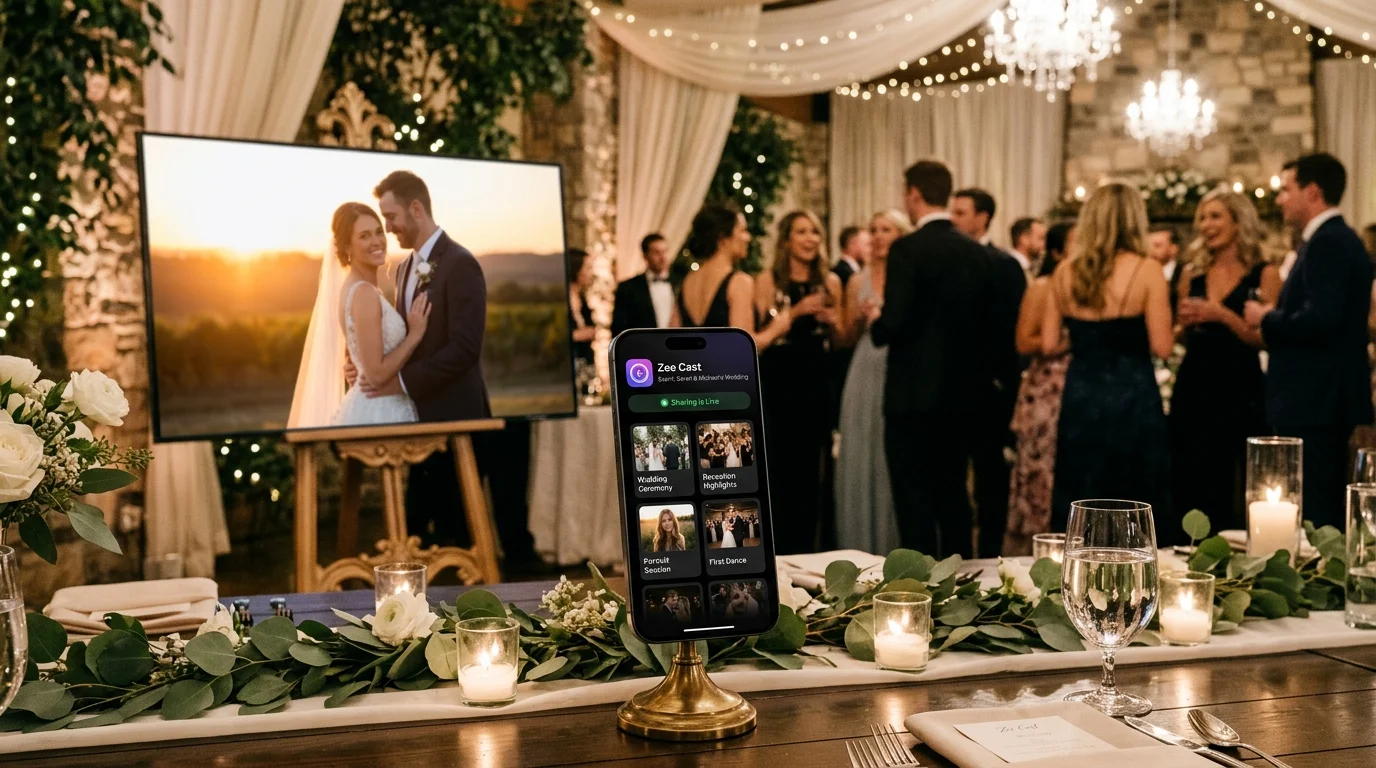
Key takeaways
- Screen mirroring broadcasts your live phone display to the TV, risking accidental exposure of incoming texts, banking alerts, or private photos.
- Zee Cast uses Curated Collections: only explicitly chosen photos and clips are published to the network; the rest of your camera roll remains completely hidden.
- Because DLNA decouples server streaming from your phone screen, you can lock your phone or text privately while the TV slideshow plays.
- Per-IP Device Approval acts as an on-device gatekeeper, blocking unauthorized smart TVs or devices on shared networks.
The Familiar Living Room Nightmare: Accidental Over-Sharing
It is a classic scenario during the holidays or after a long summer vacation: friends and family are gathered in the living room, and someone says, "Put the vacation photos up on the big TV!"
You pull out your smartphone and tap AirPlay Screen Mirroring or Samsung Smart View. Your phone's vertical screen appears in the center of the 75-inch television. You open your Photos app and start swiping through your trip.
Then, the inevitable embarrassments happen:
- The Notification Banner: A private WhatsApp text message, a confidential medical alert from your health portal, or an urgent Slack notification drops down from the top of the TV screen in bold, high-contrast text for everyone in the room to read.
- The Errant Swipe: You swipe left to show a scenic mountain vista, but accidentally reveal a private photo, a screenshot of a bank statement, or a confidential work document stored right next to it in your camera roll.
- The Phone Lock Interruption: Your phone screen times out after two minutes, plunging the TV into darkness and cutting off playback right in the middle of a family video.
⚠️ The Inherent Vulnerability of Screen Mirroring
Screen mirroring is a raw framebuffer clone. Whatever is on your glass display is broadcast to the television. There is no filter, no privacy partition, and no separation between your personal digital life and the shared living room environment.
How Zee Cast Solves Photo Privacy Once and for All
Zee Cast was designed specifically to eliminate the social anxiety of sharing personal media. By moving from a "Screen Mirror" architecture to a curated Local UPnP Media Server model, your privacy is protected by three layers of defensive design:
Layer 1: Curated Collections (Selective Sharing)
Instead of opening your raw camera roll or scanning your phone's entire file system, Zee Cast operates through purposeful, user-defined Collections.
Before sharing, you create a collection (e.g., "Banff Vacation 2026") and pick the exact 35 photos and 4 video clips you wish to present. When you turn on sharing, Zee Cast's UPnP ContentDirectory Service publishes only those 39 items to the network.
Even if someone tries to browse other directories using the TV remote, they simply do not exist. Your unselected camera roll photos, hidden albums, screenshots, and private folders remain completely invisible.
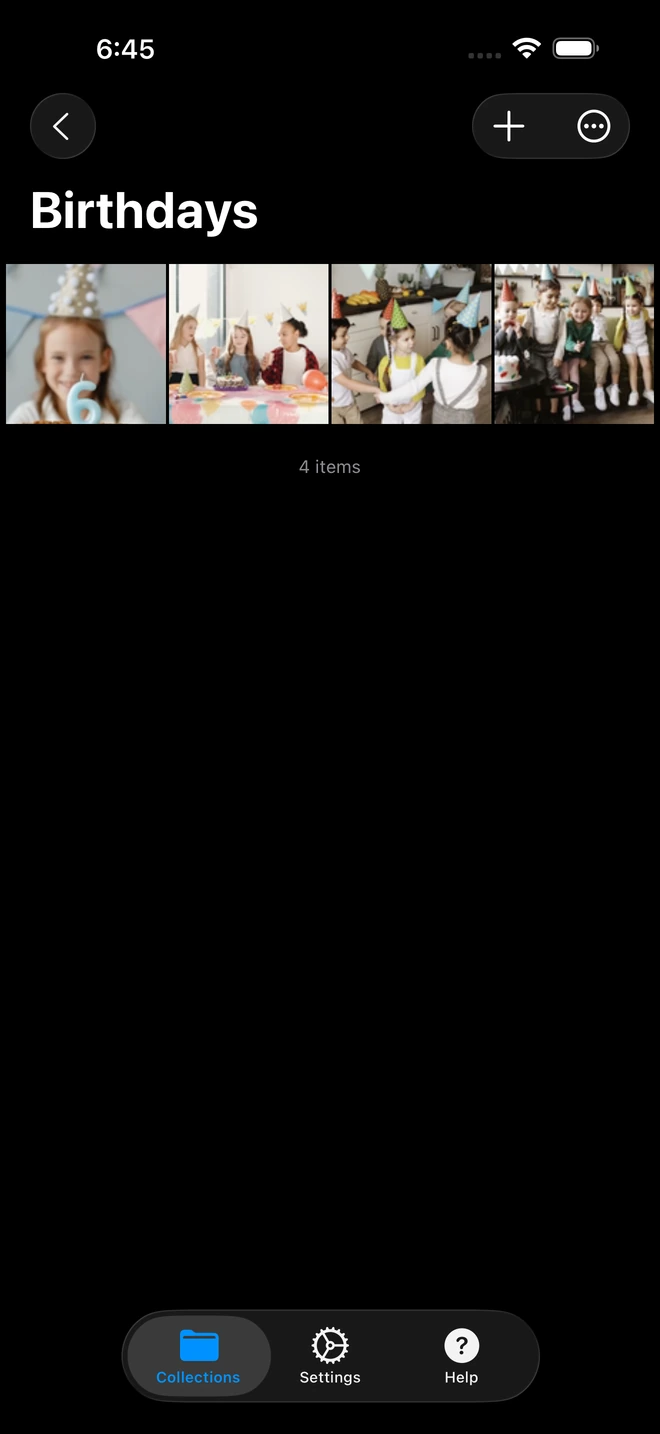
- 1Full-resolution photos and 4K clips play without cloud uploads.
Layer 2: Decoupled Background Playback
Because Zee Cast serves media over standard HTTP/DLNA rather than capturing your phone's display buffer:
- Your phone screen never mirrors to the TV.
- Incoming calls, SMS messages, and push notifications never appear on the TV screen.
- You can lock your phone screen completely and leave it on the coffee table while the slideshow plays.
- You can comfortably use your phone to text, check email, or take a phone call in another room with zero interruption to the TV.
Layer 3: Per-IP Device Approval
On busy home Wi-Fi networks, multiple smart TVs, tablets, and gaming consoles share the local subnet. If you live in an apartment building with shared Wi-Fi, other residents might see open media servers.
Zee Cast solves this with built-in Device Approval:
- When a TV attempts to connect, Zee Cast intercepts the request at the TCP socket layer.
- Your phone displays an authorization modal showing the connecting device's IP address and name (e.g., "Allow Living Room Samsung TV [192.168.1.52] to browse media?").
- Tap Allow to grant access, or tap Deny to block unauthorized screens instantly.
The Better Living Room Experience: Remote Control Slideshows
When you share photos via Zee Cast, you don't have to stand awkwardly holding your phone and swiping through pictures.
Instead, your TV's native media player takes charge:
- Pick up your TV's physical remote control.
- Use the Left / Right arrows to advance photos at your own pace.
- Turn on your TV's native Slideshow Mode to set automatic slide durations (e.g., 5 seconds per slide) with elegant crossfade transitions.
- Enable ambient background music directly through your TV's sound system.
Step-by-Step: Setting Up a Private Family Slideshow
- 1
Install Zee Cast Free
Available on the App Store and Google Play Store. No user account or cloud login needed.
- 2
Curate Your Photos
Create a collection and select the photos and 4K video clips you want to share. All other photos stay locked in your private library.
- 3
Turn On Sharing with Device Approval
Tap Turn on sharing. Ensure Device Approval is active in settings for complete peace of mind.
- 4
Browse from Your Smart TV
Select Zee Cast under TV Sources or Connected Devices. Tap Allow on your phone when prompted, sit back on the couch, and enjoy the slideshow.
Frequently Asked Questions
Why is screen mirroring dangerous for showing vacation photos at family gatherings?
Screen mirroring (such as AirPlay Mirroring or Smart View) broadcasts your phone's exact screen pixels to the TV. Any incoming notification - a sensitive WhatsApp text, private banking alert, doctor's appointment reminder, or work email - will instantly pop up on the 65-inch television screen for everyone in the room to read. Furthermore, swiping through photos on your phone screen risks accidentally exposing private selfies, medical receipts, or financial documents.
How does Zee Cast guarantee that my private photos remain hidden?
Zee Cast never shares your entire camera roll. It operates on a Curated Collection model: only the exact photos and videos you explicitly assign to an active collection are published into the UPnP/DLNA Content Directory. The television's media player has zero knowledge of or access to the remaining thousands of photos in your library.
Can I use my phone or answer private messages while the TV slideshow is running?
Yes! Because Zee Cast runs as a background media server rather than a screen mirror, playback is completely decoupled from your phone's display. You can lock your phone, reply to personal messages, take phone calls, or browse social media with complete privacy while the TV continues playing your slideshow uninterrupted.
What is per-IP Device Approval and why does it matter on shared Wi-Fi?
If you are on a busy home Wi-Fi network or apartment building Wi-Fi, other connected smart TVs, computers, or gaming consoles could theoretically discover an open DLNA media server. Zee Cast's per-IP Device Approval feature halts any incoming connection request and displays an instant authorization modal on your phone screen. You decide exactly which TV has permission to view your media.
Can I control the photo slideshow using my TV's physical remote control?
Yes. Because Zee Cast operates as a standard DLNA Digital Media Server, your TV's built-in media player (Samsung Tizen Gallery, LG webOS Photo & Video, Roku Media Player) manages the presentation. You can use your physical TV remote to pause, advance slides, change slideshow transition speed, or loop background music.
Does Zee Cast compress my 48MP or 200MP camera photos when displaying on TV?
No. Zee Cast serves full-resolution, untouched JPEG and HEIC/JPEG original images directly to your TV. A 4K TV receives the full resolution image, allowing its internal image processor to render breathtaking detail and clarity on modern OLED and QLED displays.
Does Zee Cast upload my family photos to any cloud servers?
Never. Zee Cast has zero cloud servers, zero account sign-ups, and zero cloud backups. Every byte of image data transfers strictly across your local Wi-Fi router directly from your phone's storage to your television.
Can I run a photo slideshow when visiting family who don't have home Wi-Fi?
Yes! You can turn on your smartphone's Personal Hotspot, connect your family member's smart TV or streaming stick to the hotspot, and run Zee Cast completely offline with zero cellular data usage.
What happens if someone on the Wi-Fi network tries to access my photos without permission?
If Device Approval is enabled, the unauthorized device's connection attempt will be immediately blocked and held at the TCP socket layer while your phone alerts you with a prompt. If you deny the request, the device receives a connection refusal and can never access your files.


