
 ⚡ At a Glance: GoPro & Action Cam Direct Play Specs ⚡ At a Glance: GoPro & Action Cam Direct Play Specs | |
|---|---|
| Target Platform & OS | 4K / 8K Smart TVs (Samsung, LG, Sony, Philips, TCL) & Streaming Consoles |
| Protocol & Port | DLNA 1.5 / UPnP MediaServer, Port 8080 (HTTP Byte-Range) |
| Connection Type | Local Wi-Fi (5 GHz / 802.11ac/ax) or Hotspot (0 MB Internet Data) |
| Transcoding | None (Direct Play original 100+ Mbps 10-bit HEVC action bitstreams) |
| Typical Setup Time | ~60 seconds (Zero MicroSD card swapping or cloud uploads) |
The Action Cam Paradox: Amazing Cameras, Painful Living Room Playback
Modern action cameras like the GoPro HERO13 Black, HERO12, DJI Osmo Action 5 Pro, and Insta360 Ace Pro capture jaw-dropping footage: 5.3K resolution, buttery 60fps and 120fps frame rates, and 10-bit color depth with bitrates exceeding 100 to 120 Mbps.
Yet, when you return from a weekend of mountain biking, snowboarding, or track driving and want to relive the action with friends on your 65-inch or 75-inch 4K TV, you hit a technological wall:
- Cloud Uploads Are Painfully Slow: A 15-minute downhill run generates over 12 Gigabytes of data. Uploading that over home broadband takes hours, and cloud services heavily compress video down to 1080p.
- Screen Mirroring Fails on Fast Motion: AirPlay and Google Cast screen mirroring encode your phone's screen in real time at a meager 8–12 Mbps. High-speed action scenes turn into a pixelated soup of compression artifacts and stuttering frames.
- MicroSD Swapping Is Cumbersome: Pulling microscopic cards, hunting for adapters, and plugging into TV USB slots often results in "Unsupported File Format" or unreadable exFAT errors on TV firmware.
The Direct Play Solution with Zee Cast
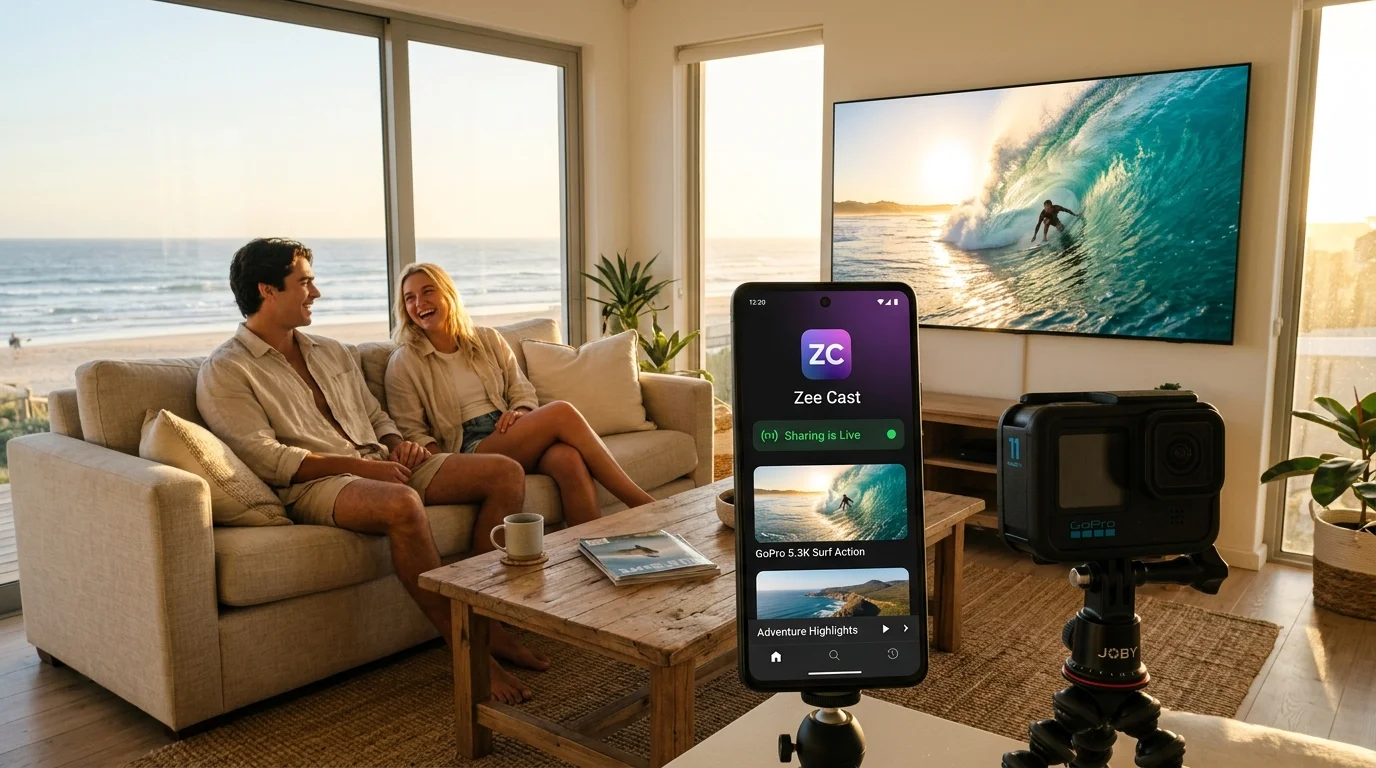
Zee Cast solves this by transforming your smartphone into a high-bandwidth local UPnP/DLNA media server. Once footage is imported onto your phone via the camera app (Quik or Mimo), your Smart TV connects directly to your phone over 5 GHz Wi-Fi and pulls the raw 100Mbps+ master file using HTTP byte-range streaming.
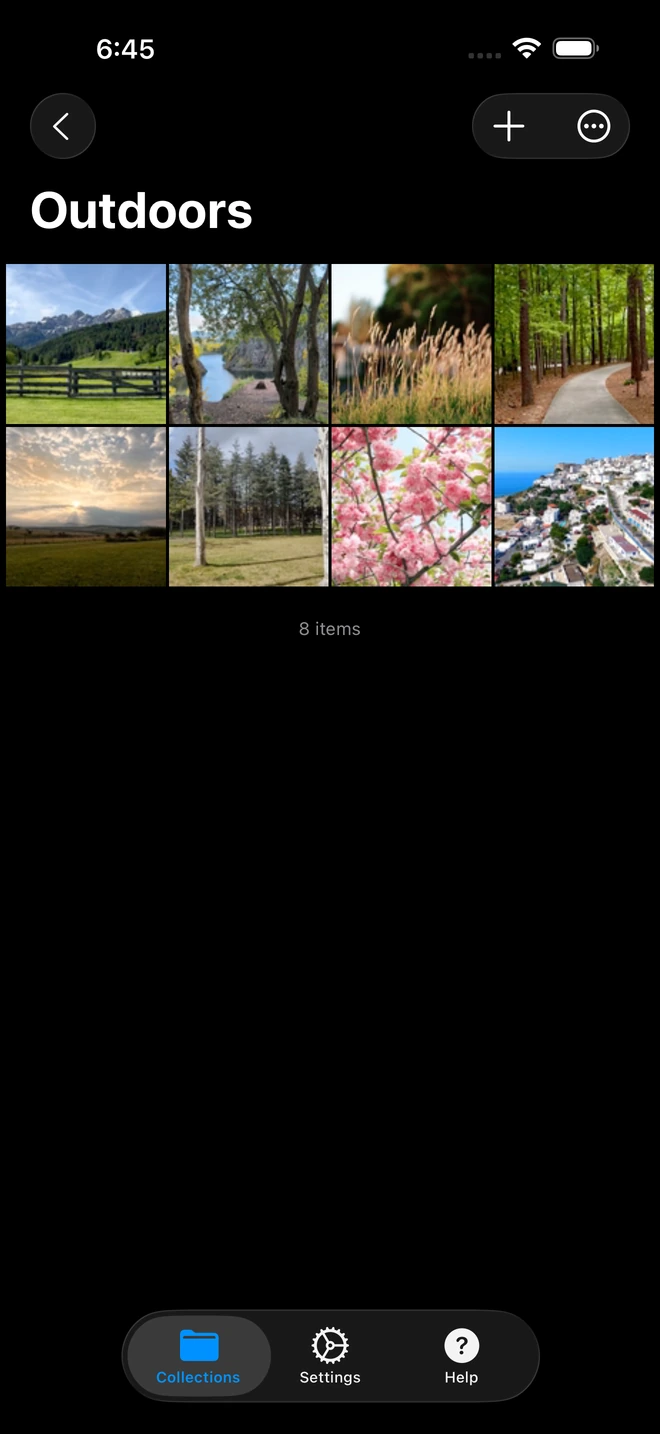
- 1High-bitrate 4K files stream without transcode compression.
4-Step Setup: Streaming Action Cam Footage to Smart TV
Get high-bitrate action footage onto your living room display in minutes:
- 1
Import Clips to Your Smartphone
Connect your GoPro or action camera to your phone via USB-C cable (fastest) or Wi-Fi Direct using the GoPro Quik or DJI Mimo app. Save your raw video files to your phone's photo library or internal storage.
- 2
Stage Media & Start Sharing in Zee Cast
Open Zee Cast on your phone. Tap Create Collection, select your action camera clips, and tap Turn on sharing. The local server activates instantly in the background.
- 3
Select Zee Cast on Your Smart TV
Grab your TV remote and navigate to the media player or connected input sources:
 Samsung Neo QLED / OLED · Menu Navigation
Press Home → Navigate to Connected Devices → Select Zee Cast
 LG OLED / QNED (webOS) · Menu Navigation
Press Home → Open Home Dashboard → Select Zee Cast under Storage
Sony BRAVIA XR · Menu NavigationPress Inputs → Open Media Player → Choose Zee Cast
- 4
Experience Full 60fps Motion Clarity
Use your TV remote arrows to navigate your clips. Press Play to experience native 4K 60fps playback with buttery-smooth motion tracking, full dynamic range, and crystal-clear environmental audio.
Performance Comparison: Why Screen Mirroring Chokes on Action Video
Here is a technical comparison of action footage playback across different methods:
| Metric | AirPlay / Google Cast Mirroring | Cloud Upload (GoPro/Google) | Zee Cast (DLNA Direct Play) |
|---|---|---|---|
| Streaming Bitrate | Capped at ~8–12 Mbps | Cloud compressed (~15 Mbps) | 100–120 Mbps (Full Master Quality) |
| Motion Artifacting | Severe macroblocking & blur | Moderate compression blur | Zero (Pristine pixel-level detail) |
| Frame Rate Stability | Dropped frames / 30fps judder | 30fps or 60fps | Rock-solid native 60fps / 120fps |
| Time to Watch | Instant (but ruined quality) | 1–2 hours upload/download | Instant (Zero cloud wait time) |
| Internet Required | Local Wi-Fi router | High-speed broadband needed | 0 MB (Works offline / on hotspot) |
Hardware Decoding: Letting Your TV's Silicon Do the Work
Smart TVs released over the past several years feature specialized hardware decoding blocks within their system-on-chip (SoC) architectures (e.g., Samsung's NQ8 AI Gen3, LG's α11 AI Processor, Sony's XR Cognitive Processor). These processors are designed specifically to decode complex HEVC profiles in silicon with virtually zero thermal overhead.
Because Zee Cast serves raw MP4 files via HTTP byte-range requests without transcoding, your smartphone stays completely cool. Your TV remote's scrubbing bar, chapter seek, and pause controls work instantaneously.
💡 Pro Tip: Direct Play at the Ski Cabin or Campsite
If you are on a ski trip or camping off-grid without broadband internet, simply turn on your smartphone's Personal Hotspot. Connect your Smart TV or portable projector to your phone's hotspot Wi-Fi, open Zee Cast, and relive your day's runs around the fireplace with zero cellular data usage.
Frequently Asked Questions
Can Smart TVs smoothly decode 100Mbps+ GoPro video streams over Wi-Fi?
Yes. Modern Smart TVs (Samsung Neo QLED/OLED, LG OLED C/G-series, Sony BRAVIA XR) contain dedicated silicon hardware decoders capable of parsing 4K 60fps and 120fps HEVC (H.265) bitstreams exceeding 120 Mbps. Over a standard 5 GHz Wi-Fi network, local throughput typically reaches 300–800 Mbps, providing more than enough bandwidth to direct play raw action camera files without buffering.
Why does AirPlay or Google Cast screen mirroring stutter on action footage?
Action camera videos contain extreme temporal variance - mountain biking through trees, surfing waves, or high-speed skiing creates massive data changes between frames. Screen mirroring apps try to re-encode your phone screen in real time, capping bitrates around 8–12 Mbps. In fast-motion scenes, the encoder chokes, dropping frames, desyncing audio, and covering the screen in pixelated compression macroblocking. Zee Cast bypasses this by streaming the raw original file directly.
How do 5.3K GoPro HERO videos play on a 4K UHD television?
When a TV's internal media player or an app like VLC/Kodi opens a 5.3K (5312x2988) HEVC file, the television hardware downscales the image to the panel's 3840x2160 resolution. This results in 'supersampling,' delivering visibly sharper textures and finer detail than native 4K recordings.
Do I need to take the MicroSD card out of the GoPro and plug it into the TV?
No. MicroSD cards are fragile, easy to drop, and many modern TVs format USB drives unpredictably or fail to parse exFAT partitions properly. Transferring clips to your phone and streaming wirelessly via Zee Cast keeps your camera sealed and your living room free of card readers.
Does Zee Cast preserve 10-bit GP-Log and D-Log M color profiles?
Yes. Zee Cast never transcodes or re-compresses media. The exact bitstream with 10-bit color depth, wide color gamuts, and embedded audio tracks is delivered untouched to the television.
Can I stream high-frame-rate 120fps and 240fps slow-motion footage?
Yes. When you record slow-motion on GoPro or DJI, the camera encapsulates the footage into an MP4 file. If shot as standard high frame rate or conformed in-camera to 24p/30p slow motion, Zee Cast serves the file for buttery-smooth playback on your TV.
Does streaming 4K GoPro clips require home internet or cellular data?
No. All media transfers occur 100% locally across your Wi-Fi router or via your smartphone's offline personal hotspot. Zero megabytes of internet data are consumed, making it ideal for remote cabins, campsites, or ski lodges.
Does this work with DJI Osmo Action and Insta360 cameras as well?
Yes. Whether you shoot on a GoPro HERO13/12/11/10 Black, DJI Osmo Action 4/5 Pro, or Insta360 Ace Pro, once the video files are saved to your phone's camera roll or storage, Zee Cast streams them with full hardware acceleration.


