
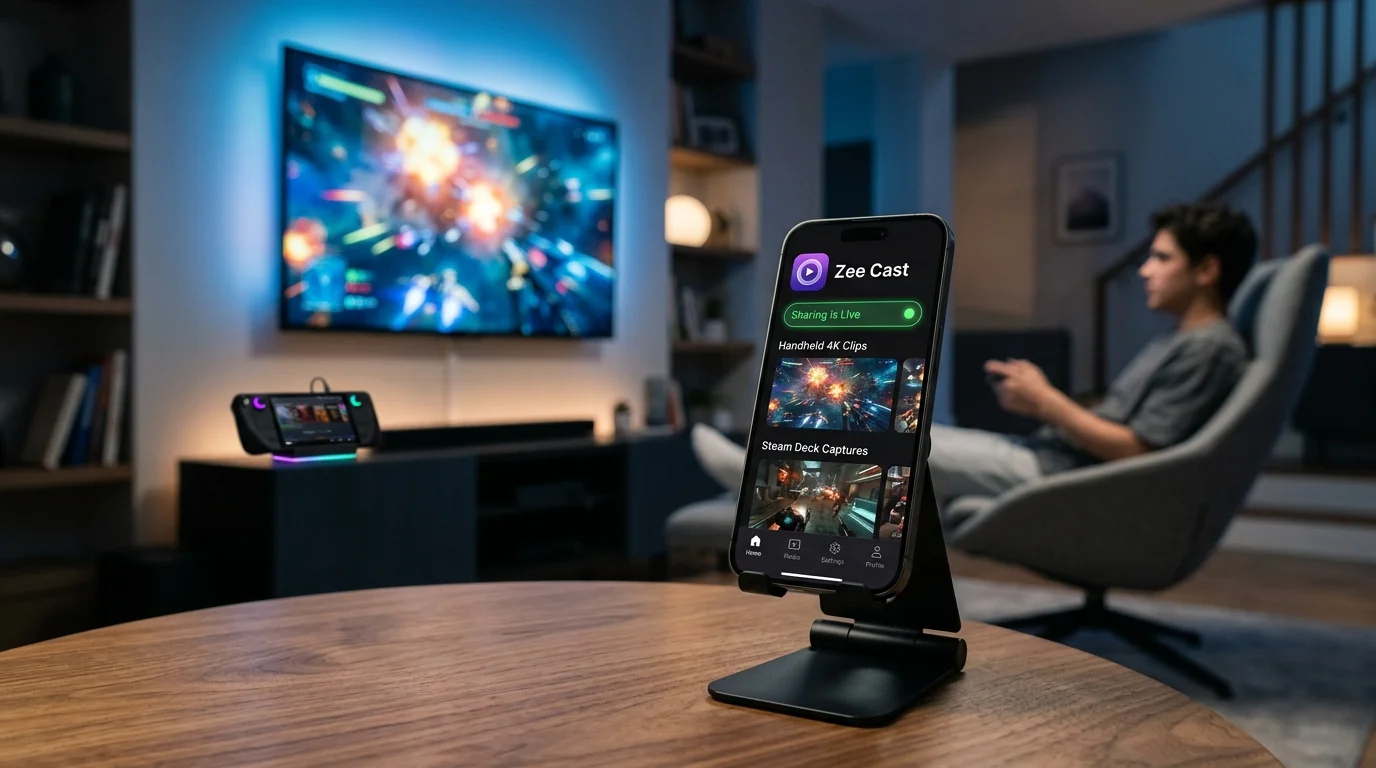
 ⚡ At a Glance: Steam Deck & Handhelds Specs ⚡ At a Glance: Steam Deck & Handhelds Specs | |
|---|---|
| Target Platform & OS | Valve Steam Deck (SteamOS), ASUS ROG Ally, Lenovo Legion Go to Samsung, LG, Sony & TCL TVs |
| Protocol & Port | DLNA 1.5 / UPnP MediaServer, Port 8080 (HTTP Byte-Range) |
| Connection Type | Local Wi-Fi (5 GHz / Wi-Fi 6 recommended) or Ad-hoc Hotspot (0 MB Internet) |
| Transcoding | None (Direct Play original 4K/60fps HEVC/H.264 gameplay captures) |
| Typical Setup Time | ~90 seconds (Zero docks, cables, or TV store apps required) |
The Handheld Revolution: Epic Gameplay Captured on the Go
The rise of PC gaming handhelds - led by the pioneering Valve Steam Deck (LCD and OLED), the high-refresh ASUS ROG Ally (Z1 Extreme and Ally X), and the massive 8.8-inch Lenovo Legion Go - has fundamentally transformed how we experience games. These pocketable powerhouses render AAA blockbusters, emulate timeless classics, and record breathtaking 1080p and 4K 60fps gameplay moments directly to internal NVMe storage or high-speed microSD cards.
However, sharing those jaw-dropping gaming highlights, speedruns, or your personal movie library with friends and family in the living room remains an unexpected hassle. Traditionally, players have had to invest $80 in an official docking station, string 15-foot HDMI cables across the floor, or wrestle with temperamental screen-mirroring protocols that stutter and drop frames.
By transforming your gaming handheld into an open DLNA/UPnP Media Server via Zee Cast, you eliminate physical cables completely. Your Samsung, LG, Sony, or TCL Smart TV detects your handheld over local Wi-Fi, pulling pristine, uncompressed video streams directly into the television's hardware decoder.
💡 Why Handheld Docks Aren't Always the Answer
While USB-C docks are excellent for desktop desk setups, they require you to leave your handheld anchored beneath the television. You lose the ability to browse clips from the comfort of your sofa, and docking often forces the handheld's GPU to drive a 4K display, ramping up fan noise and power draw. With DLNA streaming, your handheld simply transfers bits over Wi-Fi while drawing less than 4 watts of power.
DLNA Direct Play vs. Screen Mirroring vs. Docks
To understand why local DLNA streaming is the superior protocol for viewing captures and offline media, compare how different streaming architectures handle high-bitrate video:
| Feature | Physical USB-C Dock | Wireless Screen Mirror (Miracast) | Steam Link / Remote Play | Zee Cast (DLNA Direct Play) |
|---|---|---|---|---|
| Physical Tethering | Requires HDMI cable & power brick | Wireless | Wireless | 100% Cable-Free |
| Video Decoding Burden | Handheld GPU (15W–30W) | Handheld CPU re-encodes live screen | Handheld GPU live encoding | Smart TV dedicated SoC (0W handheld GPU) |
| Image Quality | Lossless native | Heavily compressed, 30fps stutter | Compressed interactive stream | Bit-for-Bit Pristine 4K 60fps |
| Aspect Ratio Matching | Forces handheld to output 16:9 | Often black bars (16:10 on Deck) | Letterboxed | Full-screen TV native fill |
| Handheld Usability | Stationary dock position | Handheld screen mirrored live | Host machine occupied | Free to browse, lock, or play games |
| Battery & Thermal Impact | High heat, fan noise | Severe thermal throttling | Moderate battery drain | Minimal (<4W background network I/O) |
How Local UPnP/DLNA Streaming Works on Gaming Handhelds
Unlike real-time game streaming which requires bidirectional controller input polling with sub-10ms response times, media playback relies on a client-pull streaming pipeline. When you initiate sharing on your handheld:
- SSDP Announcement: Zee Cast broadcasts a lightweight multicast beacon across UDP port 1900. Your Smart TV listens for these announcements and immediately parses the Device Description XML file.
- Zero Re-Encoding Overhead: Gameplay files captured via OBS Studio, Decky Recorder, AMD Radeon ReLive, or Xbox Game Bar are stored in standard H.264 (AVC) or H.265 (HEVC) containers. Zee Cast does not perform costly real-time re-encoding.
- HTTP Byte-Range Streaming: When you hit play on your TV remote, the TV makes HTTP GET requests with Range headers (e.g.,
bytes=1048576-2097151). This allows your television to instantly seek forward or backward through multi-gigabyte speedrun captures without buffering delays.
- 1Direct stream playback preserves original bit-perfect audio quality.
Step-by-Step Guide: Streaming from Handheld to Smart TV
Follow these four simple steps to broadcast your handheld gaming triumphs and movie files directly to your living room screen:
- 1
Connect Handheld and TV to High-Speed Wi-Fi
Connect both your handheld device (Steam Deck, ROG Ally, or Legion Go) and your Smart TV to the same local Wi-Fi router. For silky 4K 60fps playback without stutter, select the 5 GHz or Wi-Fi 6 band on your router. If you are traveling or attending a LAN party without a router, you can create a mobile hotspot on your phone and connect both devices to it.
- 2
Curate Your Gameplay Highlights and Media Folders
On your handheld, identify the directories containing your media. On the Steam Deck running SteamOS, switch to Desktop Mode (Steam button → Power → Switch to Desktop) to access your video capture directories:
Default Paths on Steam Deck:
• Decky Recorder / OBS Clips:/home/deck/Videos/
• MicroSD Card Video Storage:/run/media/mmcblk0p1/Videos/
• Steam Screenshots:~/.local/share/Steam/userdata/[ID]/760/remote/On Windows 11 handhelds (ASUS ROG Ally, Lenovo Legion Go), your game recordings are typically saved in
C:\Users\[Username]\Videos\Captures\. Open Zee Cast and add these folders to your shared media library. - 3
Start Zee Cast UPnP Sharing
Launch Zee Cast on your handheld or paired companion device and click Turn on sharing. The local UPnP server initializes instantly on local port 8080. No login, cloud account, or external server configuration is required.
- 4
Locate Your Handheld on the Smart TV
Grab your television remote control and navigate to the built-in media browser corresponding to your TV brand:
 Samsung Smart TV (Tizen) · Menu Navigation
Press Home → Navigate to Connected Devices (or Sources) → Select Zee Cast Handheld
 LG Smart TV (webOS) · Menu Navigation
Press Home → Launch Home Dashboard (or Media Player) → Select Zee Cast Handheld
 Sony Bravia (Google TV) · Menu Navigation
Open Media Player app → Scroll to Network Servers / DLNA → Select Zee Cast
 TCL / Hisense (Roku / Google TV) · Menu Navigation
Launch Roku Media Player or Media Center → Select Videos → Choose Zee Cast
Hardware Video Formats & Audio Passthrough
Modern Smart TVs feature powerful system-on-chip (SoC) processors engineered specifically for 4K and 8K media playback. When streaming from your gaming handheld, understanding supported formats ensures flawless hardware-accelerated playback:
| Media Container | Video Codec | Audio Stream | TV Hardware Decoding Support |
|---|---|---|---|
| MP4 (.mp4, .m4v) | H.264 / AVC (High Profile) | AAC Stereo / 5.1 | Universal (100% of Smart TVs) |
| MP4 / MKV (.mkv) | H.265 / HEVC 10-bit HDR | E-AC-3 (Dolby Digital Plus) | All 4K HDR TVs (2018 and newer) |
| MKV (.mkv) | AV1 (AOMedia Video 1) | Opus / Vorbis | Modern 2022+ TVs (LG α9 Gen 5+, Samsung Neural Quantum) |
| JPEG / PNG / WebP | Raw Resolution Photo | N/A | Instant 4K Slideshow rendering |
Optimizing Gameplay Recordings for Big Screen DLNA Playback
If you regularly capture boss battles, racing game highlights, or tactical esports clutch moments on your handheld, configuring your capture software properly guarantees the cleanest image quality on a 65-inch or 75-inch 4K TV:
- Bitrate Configuration: Set your capture bitrate to at least 25 Mbps for 1080p 60fps, and 45–60 Mbps for 1440p or 4K 60fps. Because DLNA streams over local Wi-Fi rather than internet upload bandwidth, you do not need to restrict bitrates for streaming services.
- Container Selection: Always save gameplay clips as
.mp4or.mkv. Avoid raw `.avi` or proprietary recording formats. - Audio Sampling: Capture audio in 48 kHz AAC or uncompressed PCM. This guarantees full compatibility with TV soundbars and home theater receivers over HDMI eARC.
⚠️ Wi-Fi Band Steering and AP Isolation Warning
If your Smart TV fails to discover your Steam Deck or ROG Ally, check your router settings. Ensure that AP Isolation (Access Point Isolation) is disabled, and that both devices reside on the same IP subnet (e.g., both receiving 192.168.1.xxx IP addresses). If your router uses separate SSIDs for 2.4 GHz and 5 GHz, ensure both devices are connected to the 5 GHz band.
The Ultimate Portable Cinema: Movies on Your Handheld MicroSD
PC gaming handhelds are essentially full-fledged personal computers with massive storage expandability. A 1TB microSD card can comfortably hold twenty AAA games alongside hundreds of gigabytes of 4K films, documentaries, and TV series.
When staying at a friend's house, vacation cabin, or Airbnb, you can turn your handheld into the ultimate portable media server. Simply bring your Steam Deck or ROG Ally, connect it to the local Wi-Fi or spin up a mobile hotspot, and your host's Smart TV can stream your entire private media collection without logging into any accounts or exposing your personal passwords.
Frequently Asked Questions
Can Steam Deck stream media directly to Smart TVs without buying an official Steam Deck Dock?
Yes. Valve's official Steam Deck Dock or third-party USB-C hubs are only required if you want a wired HDMI or DisplayPort connection. By utilizing local UPnP/DLNA streaming through Zee Cast, your Steam Deck wirelessly serves high-resolution gameplay clips, screenshots, and 4K movies directly to the native media player on Samsung, LG, Sony, and TCL TVs with zero cables and zero dock required.
How does DLNA compare to using an HDMI cable or USB-C hub for watching recorded media?
HDMI cables require tethering your handheld close to the television, which is cumbersome and causes battery drain while running display output. DLNA Direct Play transfers the digital file over local Wi-Fi directly to the Smart TV's dedicated image processor. This eliminates physical clutter, allows you to continue using your handheld from the couch, and offloads all video decoding work to the television's hardware.
Does streaming gameplay clips to the TV introduce stutter or lag compared to Steam Remote Play?
No. Steam Remote Play is an interactive game-streaming protocol designed to stream active gameplay with millisecond-level responsiveness, which constantly compromises visual bitrate and compresses frames. In contrast, streaming saved gameplay captures or video files over DLNA sends the pristine, uncompressed bitstream directly to the TV's buffer using HTTP byte-range requests, resulting in pristine 60fps playback with zero compression artifacts.
How does media streaming work on ASUS ROG Ally and Lenovo Legion Go running Windows 11?
Because the ASUS ROG Ally and Lenovo Legion Go run standard Windows 11 Home, you have native access to Windows Media Streaming and lightweight UPnP servers like Zee Cast. You simply select your gameplay recording directory (such as Xbox Game Bar captures or AMD Radeon ReLive folders), turn on local sharing, and modern TVs immediately detect your handheld as a network media server.
Can I stream high-bitrate 60fps and 120fps gameplay recordings without transcoding?
Yes, provided your Smart TV's internal video decoder supports the container and codec (typically MP4 or MKV with H.264 or HEVC/H.265). Modern 4K Smart TVs from Samsung, LG, Sony, and TCL decode 4K 60fps video natively at bitrates exceeding 80 Mbps. Zee Cast delivers the untouched bitstream directly to the television without costly CPU transcoding.
Where are Steam Deck screenshots and gameplay video recordings stored in SteamOS?
In SteamOS Game Mode, screenshots captured with the Steam + R1 shortcut are stored in `~/.local/share/Steam/userdata/[user_id]/760/remote/`. For video captures recorded via Decky Recorder or OBS Studio in Desktop Mode, files are typically saved to `/home/deck/Videos/` or on your mounted microSD card at `/run/media/mmcblk0p1/Videos/`.
Can I stream personal movies and TV shows stored on my handheld's microSD card?
Absolutely. Many gamers use high-capacity 512GB or 1TB microSD cards to store both games and high-definition video collections. You can designate any folder on your internal NVMe SSD or microSD card as a shared media collection in Zee Cast, allowing your Smart TV to access full seasons, movies, and family albums instantly.
Does my handheld's screen stay active or can I save battery while streaming to the TV?
When streaming over DLNA, your handheld merely serves files over an internal HTTP socket - it does not need to render the video on its own display. On Windows handhelds (ROG Ally, Legion Go), you can dim the screen or turn off the display while background networking remains active. On Steam Deck, running the server in Desktop Mode allows background file transfer with minimal power draw (typically under 4 watts).
Which Smart TV operating systems natively discover the handheld DLNA server?
Virtually all major television platforms feature built-in DLNA discovery: Samsung Tizen (Sources / Connected Devices), LG webOS (Home Dashboard / Media Player), Sony Bravia Google TV (Media Player app), TCL Roku TV (Roku Media Player), and Hisense VIDAA / Google TV. No companion app needs to be installed on your television.


