

 ⚡ At a Glance: iPad Pro Boardroom Media Server Specs ⚡ At a Glance: iPad Pro Boardroom Media Server Specs | |
|---|---|
| Target Platform & OS | Boardroom Smart TVs (Samsung Tizen, LG webOS, Sony BRAVIA Google TV) |
| Protocol & Port | DLNA 1.5 / UPnP ContentDirectory, Port 8080 (HTTP Byte-Range) |
| Connection Type | Office 5 GHz Wi-Fi or iPad Personal Hotspot (0 MB Internet Data) |
| Transcoding | None (Direct Play Apple ProRes 422, 10-bit HEVC, 4K 60fps & Raw Stills) |
| Typical Setup Time | ~60 seconds (Zero HDMI dongles or Apple TV boxes required) |
The Boardroom Nightmare: Why AirPlay Screen Mirroring Fails Creatives
You are sitting across from executive creative directors, agency clients, or film producers. You connect your iPad Pro via AirPlay Screen Mirroring to the conference room display to screen your latest commercial cut or color-graded showreel. Immediately, three professional embarrassments occur:
- Ugly Aspect Ratio Letterboxing: The iPad Pro features a 4:3 or ~1.43:1 aspect ratio. Mirroring it to a 16:9 boardroom screen surrounds your widescreen video with massive black side pillars, shrinking your work and wasting over 30% of the display's real estate.
- Embarrassing Notification Popups: A private iMessage from your family, a critical Slack notification from your post-production team, or a calendar reminder pops up directly over your dramatic video climax.
- Visible Compression Macroblocking & Frame Jitter: Standard AirPlay mirroring live-encodes the iPad's display buffer into an H.264 stream compressed down to 8–15 Mbps. Delicate film grain turns into digital mush, shadow gradients show blocky banding, and 24fps cinema cadence suffers micro-stutters.
- Hostage Device: Your iPad screen is frozen mirroring the TV. You cannot check timecode notes, review client contract feedback, or browse alternative takes without showing everything to the room.
The Solution: Local UPnP Direct Play with Zee Cast
Instead of broadcasting your screen's desktop, Zee Cast turns your iPad Pro into a silent, ultra-fast UPnP/DLNA media server. When the boardroom TV accesses your presentation reel, it pulls the original, full-bitrate master file over local Wi-Fi and decodes it using the television's dedicated 4K hardware processor.
The result? Edge-to-edge 16:9 4K playback at native master quality, while your iPad Pro remains unlocked, cool, and private for your speaker notes.
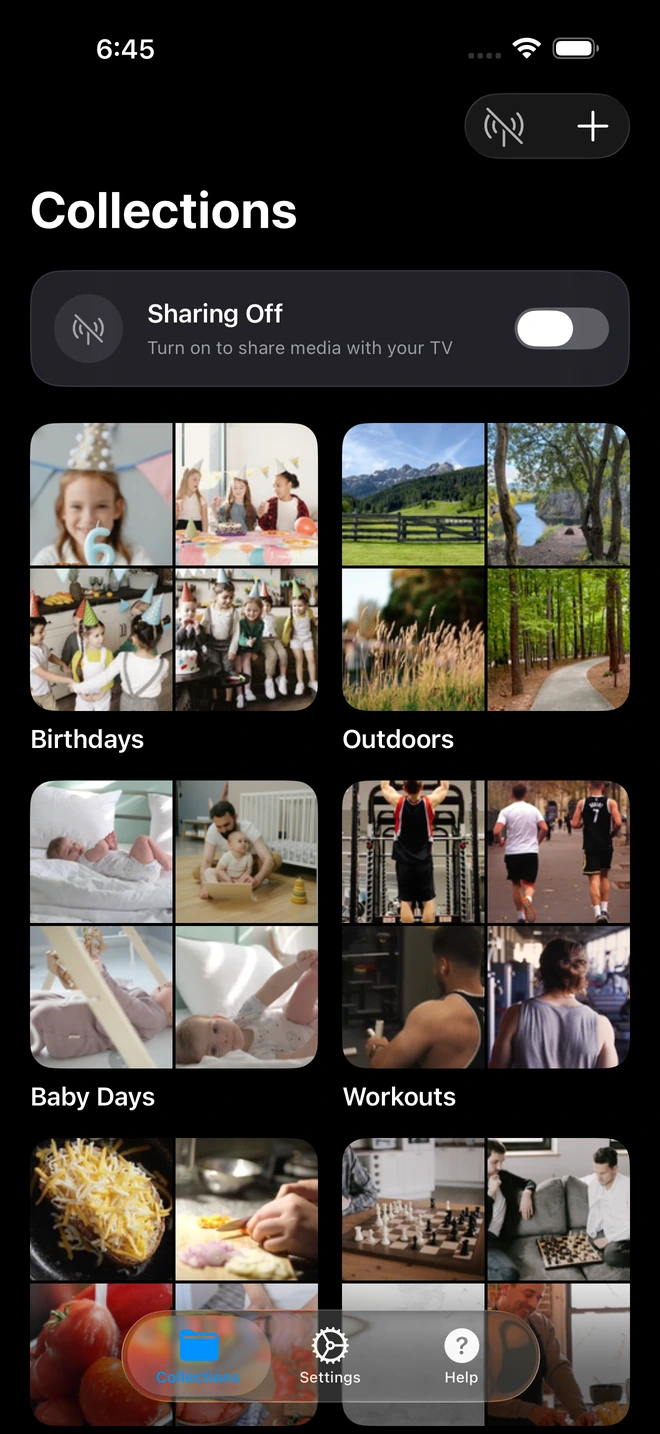
- 1Curated collections isolate shared media from your camera roll.
4-Step Boardroom Presentation Walkthrough
Get your client presentation up and running on any boardroom Smart TV in under 60 seconds:
- 1
Stage Media in Photos or Files
Import your final video exports (ProRes, 4K HEVC, or H.264) and high-res photography portfolios into your iPad's Photos library or Files app. Group them into a presentation album for seamless navigation.
- 2
Join the Same Local Network (or Hotspot)
Connect both your iPad Pro and the boardroom TV to the office Wi-Fi (prefer the 5 GHz band). If guest network security blocks peer discovery, switch on your iPad's Personal Hotspot and connect the TV to it.
- 3
Create a Presentation Collection & Turn On Sharing
Open Zee Cast on your iPad Pro. Select your presentation album, assign an optional client-friendly collection title, and tap Turn on sharing. The local server activates instantly in the background.
- 4
Select Zee Cast on the Boardroom TV Remote
Grab the boardroom TV remote and navigate to the connected sources menu. Select Zee Cast, pick your video reel, and hit Play.
 Samsung Boardroom Display · Menu Navigation
Press Home → Connected Devices (or Sources) → Select Zee Cast
 LG Commercial / OLED TV · Menu Navigation
Press Home → Open Home Dashboard → Select Zee Cast under Storage
 Sony BRAVIA Conference TV · Menu Navigation
Press Inputs → Select Media Player → Choose Zee Cast
Technical Comparison: AirPlay vs. HDMI Adapter vs. Zee Cast
Here is how Zee Cast compares against traditional client presentation setups in commercial environments:
| Workflow Criterion | AirPlay Screen Mirroring | USB-C to HDMI Dongle | Zee Cast (DLNA Direct Play) |
|---|---|---|---|
| Display Aspect Ratio | 4:3 Pillarboxed (Huge black bars) | Mirrored 4:3 (unless app overrides) | Native 16:9 Edge-to-Edge 4K |
| Visual Bitrate & Fidelity | Compressed ~10–15 Mbps stream | Raw display output | Bit-for-Bit Master (up to 100+ Mbps) |
| Client Privacy & Alerts | Exposed: Slack & texts show on TV | Exposed: All screen actions visible | 100% Private: Only staged media shown |
| iPad Multitasking | Locked: iPad mirrors whatever is open | Tethered & mirrored | Independent: Read notes, browse briefs |
| Physical Freedom | Wireless (prone to dropouts) | Tethered to TV by short cable | 100% Wireless anywhere in room |
| Enterprise Guest Wi-Fi | Often blocked by Bonjour isolation | Not affected (Wired) | Works offline via Personal Hotspot |
Mastering High-Bitrate ProRes & 10-Bit Color Delivery
Cinematographers and commercial directors invest thousands in cameras, lenses, and color grading suites. When you present to clients on an LG G-Series OLED or Sony BRAVIA XR master display, you want the client to see exact shadow detail, highlight roll-off, and skin tones.
When Zee Cast streams over a 5 GHz local Wi-Fi connection, it serves files using standard HTTP byte-range requests with zero mobile CPU transcode overhead. The television handles hardware HEVC and H.264 decoding in its native silicon, ensuring 10-bit color depth and full BT.2020 or DCI-P3 color gamuts are rendered faithfully.
💡 Pro Tip: Surviving Corporate Guest Wi-Fi Isolation
Many enterprise headquarters employ network firewalls that isolate client devices, blocking AirPlay and multicast discovery entirely. Before walking into the boardroom, toggle on Personal Hotspot in your iPad's Settings. Have the boardroom TV connect to your iPad's Wi-Fi network. Zee Cast will stream smoothly with zero internet dependency, zero IT security tickets, and zero lag.
Frequently Asked Questions
Why does AirPlay screen mirroring ruin creative client pitches?
Standard AirPlay screen mirroring forces the iPad's native 4:3 or 10:7 aspect ratio onto a 16:9 boardroom television, creating thick black pillarboxes on both sides. Additionally, AirPlay mirroring compresses the video stream on the fly to around 10–15 Mbps, causing severe color banding on dark cinematic gradients, compression macroblocking, and 30fps stutter. Crucially, screen mirroring broadcasts your entire iPad display - meaning incoming Slack pings, text messages, and confidential client emails pop up right in front of the room.
Does Zee Cast stream Apple ProRes 422 and 10-bit 4K video files?
Yes. Zee Cast serves the bit-for-bit master file directly from your iPad Pro's high-speed NVMe flash storage over local HTTP/1.1 byte-range requests. As long as the boardroom TV's hardware decoder or installed media player supports the container and codec (such as HEVC 10-bit HDR, H.264 high profile, or ProRes in MP4/MOV), the video plays at master bitrate without mobile re-encoding.
Can I review pitch notes on my iPad while the video plays on the TV?
Yes! Because Zee Cast is a background DLNA media server and not a screen mirror, your iPad display is completely independent. You can switch to Keynote, GoodNotes, Notion, or your email to reference timestamps, director notes, and client briefs while the television plays the video uninterrupted.
What if the client's corporate Wi-Fi blocks device discovery (AP Isolation)?
Enterprise and corporate guest Wi-Fi networks frequently block SSDP multicast discovery and peer-to-peer communication between devices. You can bypass this instantly: enable Personal Hotspot on your iPad Pro, connect the boardroom TV to your iPad's Wi-Fi hotspot, and launch Zee Cast. Streaming functions completely offline without internet access or IT approval.
Do I need to carry a USB-C to HDMI adapter or long cables?
No. With Zee Cast, you eliminate clumsy dongles, HDMI extension cords, and USB-C adapters that tether you to the wall or conference table. You can sit comfortably anywhere in the boardroom with your iPad Pro in your hands while wireless DLNA delivers pristine visuals to the main screen.
How does Zee Cast handle ultra-high-resolution photography stills?
When showing stills from 45MP, 60MP, or 100MP medium-format cameras, screen mirroring downscales images to your iPad screen resolution before compressing it. Zee Cast serves the full uncompressed JPEG or high-res image directly to the TV processor, allowing the Smart TV to render 4K or 8K pixels edge-to-edge with maximum clarity and color depth.
Which boardroom Smart TV brands support Zee Cast without installing an app?
Virtually all modern commercial and consumer Smart TVs include native DLNA media player clients built into their firmware: Samsung Smart TVs (Tizen OS), LG commercial and OLED displays (webOS), Sony BRAVIA (Google TV / Android TV), Panasonic, Sharp, and Philips. None of them require installing third-party apps on the TV.
Can clients fast-forward or jump to specific timecodes?
Yes. Because Zee Cast fully supports UPnP HTTP byte-range requests, using the TV remote's scrub bar, play, pause, or fast-forward buttons allows instantaneous seek times with zero buffering delays.


