

 ⚡ At a Glance: Hisense VIDAA Direct Play Specs ⚡ At a Glance: Hisense VIDAA Direct Play Specs | |
|---|---|
| Target Platform & OS | Hisense Smart TVs running VIDAA OS (VIDAA U4, U5, U6, U7, U8 on A6/U6/U7/U8 series) |
| Protocol & Port | DLNA 1.5 / UPnP MediaServer, Port 8080 (HTTP Byte-Range) |
| Connection Type | Local Wi-Fi (5 GHz recommended) or Ethernet / Hotspot |
| Transcoding | None (Direct Play original iPhone 4K HEVC/H.264 camera bitstreams) |
| Typical Setup Time | ~60 seconds (Uses VIDAA's built-in Media Player, no TV app needed) |
The VIDAA Frustration: Why Your iPhone Won't Cast to Hisense
If you purchased a Hisense Smart TV in Europe, the UK, Australia, the Middle East, or Latin America, chances are it runs Hisense's fast, lightweight VIDAA OS (such as VIDAA U5, U6, or U7).
However, when you open the Control Center on your iPhone and tap Screen Mirroring, your Hisense TV is nowhere to be found. Why?
- No Apple AirPlay 2 License: To keep prices competitive, many VIDAA models omit the proprietary Apple AirPlay 2 licensing hardware and software.
- Anyview Cast Is Android-Only: Hisense promotes "Anyview Cast" on the box, but Anyview Cast is built strictly on Wi-Fi Alliance Miracast - a protocol Apple iOS has never supported.
- VIDAA App Store Limitations: Unlike Android TV or Apple TV, VIDAA OS uses a closed Linux app store without legitimate third-party AirPlay receiver utilities.
The Solution: Built-in VIDAA DLNA with Zee Cast
What many Hisense owners do not realize is that VIDAA OS includes a powerful, hardware-accelerated DLNA/UPnP Media Player built directly into the firmware.
By launching Zee Cast on your iPhone, your phone broadcasts as a standard UPnP media server over your local Wi-Fi. Your Hisense TV's native Media app discovers it immediately, streaming photos and 4K video clips directly to the television's Hi-View Engine processor.
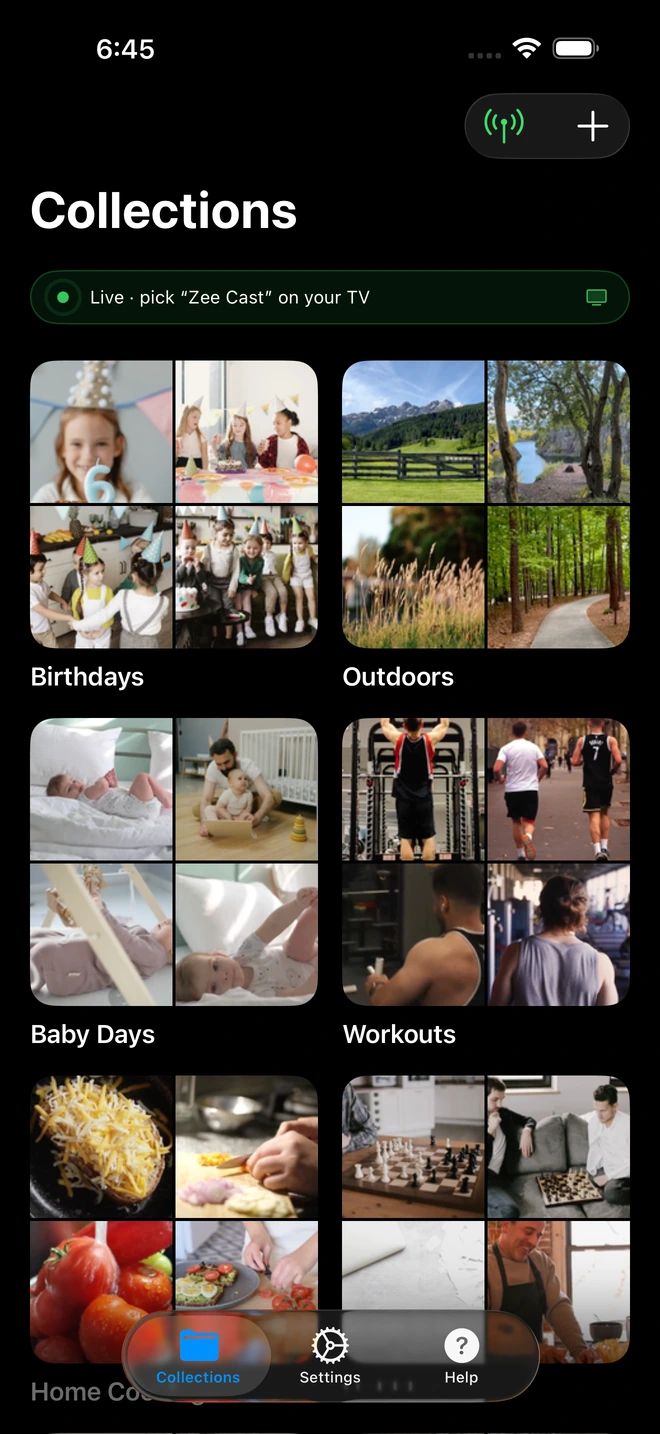
- 1Sharing is Live: TV detects Zee Cast under Connected Devices.
- 2Direct Play streams full-resolution photos & videos without mirroring.
4-Step Setup: Streaming iPhone to Hisense VIDAA TV
Start streaming your vacation photos and 4K videos in under 60 seconds:
- 1
Connect Both Devices to the Same Wi-Fi
Verify that your iPhone and your Hisense VIDAA TV are connected to the same local Wi-Fi network (prefer 5 GHz for high-bitrate 4K video) or wired router switch.
- 2
Activate Sharing in Zee Cast
Open Zee Cast on your iPhone. Create a collection containing the photos and videos you want to watch, and tap Turn on sharing.
- 3
Open Media on Your Hisense Remote
Press the Input button (or Home button) on your Hisense remote control and navigate to your TV's media browser:
Hisense VIDAA U7 / U8 · Menu NavigationPress Input → Select Media → Choose Zee Cast under Local Devices
Hisense VIDAA U5 / U6 · Menu NavigationPress Home → Open My Media app → Select Zee Cast
- 4
Browse and Play with Native Hi-View Acceleration
Use your TV remote arrows to navigate photo albums or video folders. Photos render in full 4K UHD resolution, and videos play back with buttery-smooth hardware acceleration while your iPhone remains completely free.
Comparison: Screen Mirroring Apps vs. Zee Cast DLNA Direct Play
Here is why using native DLNA Direct Play is far superior to ad-riddled App Store screen mirroring utilities:
| Feature | App Store Screen Mirror Apps | Apple TV Hardware Dongle | Zee Cast (Native DLNA) |
|---|---|---|---|
| Cost | \$5–\$10/week subscriptions | \$130–\$150 device purchase | \$0 (Uses TV's built-in media engine) |
| VIDAA Compatibility | Often requires TV app (unavailable) | Requires extra HDMI port & remote | 100% Native (Built into all VIDAA TVs) |
| Video Resolution | Compressed 720p/1080p 30fps | 4K 60fps HDR | Full Native 4K 60fps HDR Direct Play |
| Photo Aspect Ratio | Letterboxed phone aspect ratio | 16:9 full screen | 16:9 Full Screen Edge-to-Edge |
| iPhone Multitasking | Blocked (Screen is mirrored) | Allowed in some apps | 100% Independent (Lock screen, call, chat) |
Hardware Acceleration on Hisense Hi-View Engines
Hisense's proprietary Hi-View Engine processors (featured prominently in the U6, U7, and U8 ULED series) feature specialized hardware decode pipelines for 10-bit HEVC, VP9, and H.264 video.
Because Zee Cast serves original files over standard HTTP byte-range requests without mobile transcode penalties, the Hisense TV handles video rendering in silicon. The Hi-View processor can apply its full suite of MEMC motion smoothing, local dimming, and dynamic tone mapping directly to your iPhone's camera bitstream.
💡 Pro Tip: Remote Control Fast-Forward & Rewind
When watching videos from Zee Cast on your Hisense VIDAA TV, your remote's playback buttons (Play, Pause, Fast-Forward, Rewind, and Scrubbing bar) work natively. Zee Cast's HTTP server responds to byte-range seek requests, allowing you to jump to any point in a 4K home video instantly.
Frequently Asked Questions
Why doesn't my Hisense TV support Apple AirPlay 2?
While some North American Hisense models running Google TV or Roku OS license Apple AirPlay 2, millions of Hisense televisions sold globally across Europe, the UK, Australia, the Middle East, and Latin America run Hisense's proprietary Linux-based VIDAA OS (VIDAA U4, U5, U6, U7, and U8). Many of these models omit AirPlay 2 to reduce licensing fees, offering only Anyview Cast (Miracast), which iOS devices do not natively support. Zee Cast solves this by leveraging VIDAA's built-in DLNA media player.
Does Hisense VIDAA OS feature a built-in DLNA media player?
Yes! Every Hisense VIDAA Smart TV includes a pre-installed, hardware-accelerated Media Player application. It scans the local network via UPnP/SSDP protocols and natively plays photos, music, and high-bitrate 4K HEVC videos from Zee Cast without needing any companion apps on the TV.
Do I need to buy an Apple TV box or Chromecast dongle?
No. You don't need to spend $30 to $150 on an external streaming stick. By turning your iPhone into a local UPnP server with Zee Cast, your Hisense TV's internal processor pulls media directly across your home router for free.
How is Zee Cast different from App Store screen mirroring apps?
Most screen mirroring apps on the App Store charge expensive weekly subscriptions, bombard you with ads, and require installing a companion receiver app that may not even exist in the limited VIDAA App Store. Even when they work, screen mirroring produces 30fps stutter, letterboxed black side bars, and displays your private texts on the TV. Zee Cast uses DLNA Direct Play: raw files stream bit-for-bit to the TV while your iPhone stays unlocked, cool, and private.
Can I stream 4K 60fps HDR video recorded on iPhone to Hisense VIDAA?
Yes. Modern Hisense VIDAA TVs feature Hi-View Engine processors capable of decoding 4K 60fps HEVC (H.265) and 10-bit HDR10/Dolby Vision bitstreams natively. Zee Cast streams original files via HTTP byte-range requests without mobile transcoding, preserving full dynamic range and frame rates.
Can I lock my iPhone screen while media plays on the Hisense TV?
Yes. Zee Cast operates as a lightweight background service. Once playback starts on the Hisense TV, you can lock your iPhone, browse apps, answer phone calls, or chat without interrupting playback.
Does Zee Cast work if my Hisense TV is connected via Ethernet?
Yes. As long as your Hisense TV is plugged into your router via Ethernet and your iPhone is connected to the same router's Wi-Fi network, DLNA discovery and streaming work seamlessly.
Does this require an internet connection or consume cellular data?
No. All media streaming occurs 100% locally across your Wi-Fi router. Zee Cast consumes zero kilobytes of internet data and works even during ISP broadband outages.


