

 ⚡ At a Glance: Google Pixel to Samsung & LG Specs ⚡ At a Glance: Google Pixel to Samsung & LG Specs | |
|---|---|
| Target Platform & OS | Samsung Smart TVs (Tizen OS 2.4–8.0+) & LG Smart TVs (webOS 3.5–24+) |
| Protocol & Port | DLNA 1.5 / UPnP MediaServer, Port 8080 (HTTP Byte-Range) |
| Connection Type | Local Wi-Fi (5 GHz recommended) or Mobile Hotspot (0 MB Internet) |
| Transcoding | None (Direct Play original Pixel 4K HEVC/H.264 camera bitstream) |
| Typical Setup Time | ~60 seconds (No Chromecast or TV App Installation Required) |
The Pixel Dilemma: Why Your Phone Refuses to Cast to Your TV
If you own a Google Pixel (Pixel 6, Pixel 7, Pixel 8, Pixel 9, Pixel Pro, or Pixel Fold) and a Samsung or LG Smart TV, you have almost certainly encountered an infuriating roadblock: you tap the Cast tile in your Pixel's Quick Settings, and your expensive Smart TV is completely absent from the device list.
Meanwhile, your friends with Samsung Galaxy or iPhone devices can effortlessly share content to the exact same TV. Why does Google's flagship phone refuse to talk to the two largest television manufacturers on the planet?
⚠️ The Proprietary Protocol Trap
Starting with Android 6.0 Marshmallow, Google deliberately removed the industry-standard Wi-Fi Alliance Miracast code from AOSP on Nexus and Pixel hardware. Pixel devices are hardcoded at the operating system level to only cast via Google's proprietary Google Cast protocol.
Because Samsung (which runs Tizen OS) and LG (which runs webOS) refuse to pay licensing fees to embed Google Cast receiver hardware in their TVs, an artificial wall separates the devices:
- Google Pixel Quick Settings: Transmits only Google Cast protocol (searches strictly for Chromecasts, Nest displays, and Android TV / Google TV boxes).
- Samsung Smart TVs: Accept Miracast (Smart View / Wi-Fi Direct) and UPnP/DLNA, but lack Google Cast receiver firmware.
- LG Smart TVs: Accept Miracast and UPnP/DLNA (SmartShare / Home Dashboard), but lack Google Cast receiver firmware.
Faced with this incompatibility, users are typically told they have only two choices: spend $30 to $50 on an external Chromecast HDMI dongle, or install shady, ad-heavy "screen mirroring" apps from the Play Store. Fortunately, there is a vastly superior, zero-cost engineering solution already built into your television.
The Native Bridge: How Zee Cast Connects Pixel to Tizen and webOS
While Samsung and LG TVs do not support Google Cast, every single Samsung TV made since 2016 and every LG TV running webOS includes a robust, hardware-accelerated UPnP/DLNA Media Renderer built directly into its system software.
Zee Cast solves the Pixel incompatibility by turning your Google Pixel into a lightweight, high-performance local DLNA media server. Instead of trying to force a proprietary screen-mirror stream across incompatible ecosystems, Zee Cast broadcasts standard UPnP discovery packets (SSDP) over your local Wi-Fi.
Your Samsung or LG TV instantly recognizes your Pixel as a high-speed media source under its native inputs menu. When you select a photo or 4K video, the TV's own media player streams the file directly from your phone using standard HTTP byte-range requests.
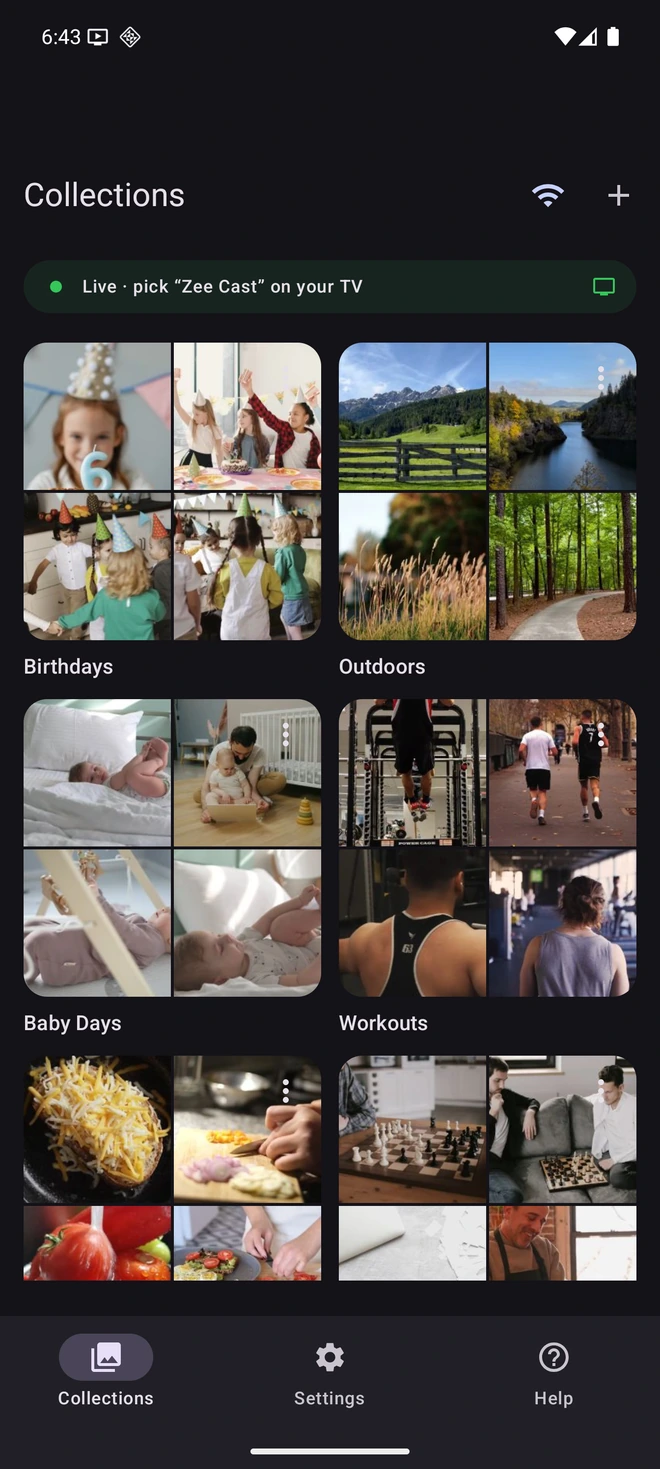
- 1Sharing is Live: TV discovers your device instantly via SSDP.
- 2Direct Play streams original 4K video files without Chromecast.
Step-by-Step Setup: Stream from Pixel to Samsung & LG TV
Setting up direct media streaming from your Google Pixel takes less than one minute and requires zero apps or configuration on the TV itself:
- 1
Connect Both Devices to Local Wi-Fi
Ensure your Google Pixel and your Smart TV are connected to the same home Wi-Fi network. For seamless streaming of high-bitrate 4K 60fps clips captured by your Pixel's camera, connect both devices to your router's 5 GHz band.
- 2
Open Zee Cast & Curate Your Media
Open Zee Cast on your Google Pixel. Create a collection containing only the photos, vacation albums, or 4K video clips you want to display on the TV. Tap Turn on sharing to launch the local UPnP media server.
- 3
Select Zee Cast on Your Samsung or LG TV
Locate Zee Cast on your TV's native input dashboard:
 Samsung Smart TV · Menu Navigation
Press Home → Navigate to Connected Devices (or Sources) → Select Zee Cast
 LG webOS TV · Menu Navigation
Press Home → Open Home Dashboard (or Media Player) → Select Zee Cast under Storage
- 4
Browse and Enjoy Edge-to-Edge Playback
Use your TV remote's directional arrows to open your photo albums or video folders. Photos render in full native resolution, and videos play back with buttery-smooth hardware acceleration. Your Pixel remains completely unlocked, cool, and private.
Technical Comparison: Why DLNA Beats Screen Mirroring Apps
When Pixel users search Google Play for "cast to Samsung TV," they are flooded with generic screen mirroring apps. The table below illustrates why native DLNA Direct Play is technically and practically superior:
| Technical Feature | Google Cast (Chromecast) | Play Store Mirror Apps | Zee Cast (DLNA Direct Play) |
|---|---|---|---|
| Hardware Cost | \$30–\$50 Dongle required | Free with ads / Subscriptions | \$0 (Uses TV's built-in decoder) |
| Samsung / LG Native Support | No (Requires HDMI dongle) | Varies / Glitchy RTSP stream | 100% Native (Tizen & webOS built-in) |
| Video Fidelity | Compressed stream | Severely downscaled / 30fps stutter | Bit-for-Bit 4K 60fps Direct Play |
| Photo Aspect Ratio | Letterboxed | 20:9 Phone aspect (Black side pillars) | 16:9 Full Screen TV Fill |
| Phone Multitasking | Allowed in some apps | Blocked (Mirrors whole phone live) | 100% Free (Lock screen, call, chat) |
| Privacy & Notifications | App dependent | Dangerous: texts & popups shown on TV | Private: Only chosen media is exposed |
| Battery & Thermal Impact | Moderate | Severe: CPU re-encoding burns battery | Near Zero: Lightweight HTTP file server |
Full-Fidelity 4K 60fps Video from Google Pixel Cameras
Google Pixel cameras (from Pixel 6 through Pixel 9 Pro) feature class-leading computational photography and capture stunning 4K 60fps video with 10-bit color depth. Attempting to stream these videos through screen-mirroring apps crushes the bitrate down to a muddy 5–8 Mbps, resulting in blocky compression artifacts and dropped frames.
Because Zee Cast implements standard UPnP ContentDirectory and HTTP/1.1 Range header specifications:
- Zero Transcoding Overhead: The Google Pixel serves the exact `.mp4` container generated by Google Camera. There is no CPU or GPU re-encoding penalty on your phone.
- Hardware Decoding on TV: Your Samsung or LG TV's dedicated silicon (such as Samsung's Neural Quantum Processor or LG's α9 AI Processor) decodes the HEVC bitstream in real time.
- High-Bitrate Smoothness: Video streams at the full 50–80 Mbps camera bitrate across your 5 GHz Wi-Fi band, preserving razor-sharp detail, high dynamic range, and full color gradations.
💡 Pro Tip: Remote Control Playback Controls
When playing videos from your Pixel on a Samsung or LG TV, your TV remote's standard playback controls - Play, Pause, Fast-Forward, Rewind, and Scrubbing bar - work natively. Zee Cast's HTTP server responds to byte-range requests, allowing you to seek instantly to any timestamp in a 2-hour home video.
Frequently Asked Questions
Why can't Google Pixel cast directly to Samsung or LG TVs out of the box?
Google removed native Wi-Fi Alliance Miracast (Wi-Fi Display) support from AOSP starting with Android 6.0 Marshmallow on Nexus and Pixel devices. Google Pixel phones only support the proprietary Google Cast protocol in their Quick Settings. Meanwhile, Samsung Smart TVs (Tizen OS) and LG TVs (webOS) natively support Miracast and open UPnP/DLNA, but do not license or include Google Cast receiver hardware. Zee Cast bridges this gap by turning your Pixel into an open DLNA media server that both Samsung and LG TVs discover automatically.
Do I need to buy a Chromecast or Google TV streaming dongle?
No. You do not need to spend $30 to $50 on an external HDMI streaming stick. Because Samsung and LG TVs already feature powerful, hardware-accelerated DLNA media players in their operating systems, installing Zee Cast on your Pixel allows your TV to pull photos and videos directly over your existing local Wi-Fi router.
How is Zee Cast different from third-party screen mirroring apps on Google Play?
Most Play Store 'screen mirror' apps attempt to encode your live phone screen into a low-frame-rate video stream and blast it over Wi-Fi. This causes high latency, severe compression artifacts, phone overheating, and fast battery drain. Furthermore, screen mirroring displays your private text messages, banking alerts, and notifications on the TV. Zee Cast uses DLNA Direct Play: it serves the raw, full-resolution image and video files directly to the TV's processor, keeping your phone screen private, cool, and free for other tasks.
Can I lock my Google Pixel screen while streaming videos or photos to the TV?
Yes. Zee Cast operates as a background media service. Once your Samsung or LG TV begins playback, you can lock your Pixel screen, browse the web, respond to chats, or take phone calls without interrupting the TV slideshow or video stream.
Does Zee Cast support 4K 60fps HDR video recorded with Google Pixel cameras?
Yes. Google Pixel phones record outstanding 4K 60fps video in HEVC (H.265) and 10-bit HDR. Zee Cast serves the original bit-for-bit video file over HTTP byte-range requests directly to your TV. Modern Samsung Neo QLED, OLED, and LG OLED/QNED processors decode the HEVC stream in native hardware, ensuring silky 60fps playback with zero quality loss.
Where do I find Zee Cast on LG webOS versus Samsung Tizen?
On LG webOS (models 2018–2026), press the Home button on your Magic Remote and select 'Home Dashboard' (or 'Media Player' from the app launcher). Zee Cast will appear under Connected Storage / Media Servers. On Samsung Tizen TVs, press Home on your One Remote, scroll to 'Connected Devices' (or press 'Source' on older remotes), and select Zee Cast.
Does this require an internet connection or mobile data?
No. All media data flows strictly within your local home network between your Pixel and your television. Zee Cast consumes zero kilobytes of internet data and works perfectly even during ISP broadband outages or over a portable Wi-Fi hotspot in remote areas.


